Getting started with Saarah
Welcome. This guide takes you through Saarah in the order most founders use it. You'll plan and record customer conversations in Discover, write your business down on the Business Canvas, and keep track of the people you've met in the CRM. To keep it concrete we follow one made-up business, JobNote, the whole way through. Read it start to finish, or jump to the part you need from the contents.
Download this guide as a PDF46 pages, about 6 MB. Handy for printing or reading offline. It opens in a new tab.
- Parts 1–2StartSign in, set up a workspace and find your way around.app.saarah.ai
- Part 3DiscoverDecide what to ask, record your calls, read what came back.Discover
- Part 4CanvasNine boxes about your business, checked against your calls.Business Canvas
- Part 5CRMThe people you talk to, and when to get back to them.Saarah CRM
- Parts 6–7HousekeepingCopies of your work, the Trash and help when you need it.All three
Start here
What the three apps are for, the business we'll follow, and setting up your workspace.
How the three apps fit together
Most new businesses fail because nobody needed what they built. The best protection we know is to talk to customers before you build anything, and to write down what you believe first so those conversations can prove you wrong. That is what Saarah is for, and each app does one part of the job.
You sign in once and all three apps open, always on the same workspace. Saarah is free for your first 30 days, and you don't need a card. Part 2 covers that, and where everything is.
A computer for setting things up and reading results, and a phone for recording calls. If you have an iPhone, get the Saarah Discover app and record in that. On Android, or without the app, you record in the phone's browser at discover.saarah.ai. If your calls are on Zoom or Teams, record them there and upload the file afterwards.
Discover looks different on a phone. You get a cut-down version for recording, with just Home, Recordings and Settings. Do your setting up and reading on the computer.
The worked example: JobNote
We use the same made-up business in every step, so you can see how one piece of work feeds the next.
Mia used to run the office for a plumbing company, and she watched the owner lose his evenings to quotes and invoices. Her idea is JobNote, a phone app. A tradie talks through the job on site, JobNote turns the voice note into a quote, and later into an invoice.
Mia hasn't built anything yet. She has a hunch, a few friends in the trades and a lot of questions, which is exactly where most people start with Discover.
Set up your workspace
A workspace is one business. Its research projects, its contacts and its canvas all live there.
Create the workspace
- Sign up, click the link in the confirmation email, and sign in. The first time, Saarah asks you to Create your first workspace. You can add more later with New workspace at the top of the menu.
- Give it a Name. The name of the business is the obvious choice, and if it's taken Saarah suggests another.
- Fill in the Business profile while you're there. Saarah lets you skip it, but please don't. The next section explains why.
- Choose Create workspace.
If you run more than one business, or you do research for clients, give each one its own workspace. Otherwise two businesses end up sharing one canvas and you can't tell whose evidence is whose.
Fill in the business profile
Saarah has the profile in front of her every time she writes a guide or a summary for you. Give her two vague lines and you'll get generic questions back, so it's worth five minutes. If you skipped it, there's a link at the bottom of the Projects page in Discover, and a notice that nags you until it's done.
| Field | What to write |
|---|---|
| Business details | What you sell, who to, and what's different about it. A paragraph is plenty. |
| Business stage | Pre-product (nothing built yet), MVP (a first version people can try) or Revenue generating. |
| Market | B2C if you sell to consumers, B2B if you sell to businesses. Saarah uses it to decide whether a guide opens by asking about someone's life or about their work. |
- Name
- JobNote
- Business details
- JobNote is a phone app for owners of small trade businesses (plumbers, electricians, carpenters) with one to five staff. The owner talks through a job on site and JobNote turns the voice note into a quote, and later an invoice. It is meant to replace evenings spent typing quotes after work.
- Business stage
- Pre-product
- Market
- B2B: sells to businesses
Bring in your team
If you have a co-founder, invite them and they'll share the projects and the canvas. Invitations are handled in Saarah CRM, and there's a link to it from Discover's Settings. If it's just you for now, skip this.
Finding your way
Where things are, how to reach us, and how the free period works.
Menus, Help and Settings
The three apps are laid out the same way, so once you know one you know them all.
- Saarah, the main appapp.saarah.aiThis is where you land when you sign in. The menu opens Discover, the CRM and the Business Canvas, and has Help, Settings and Talk to us below them.
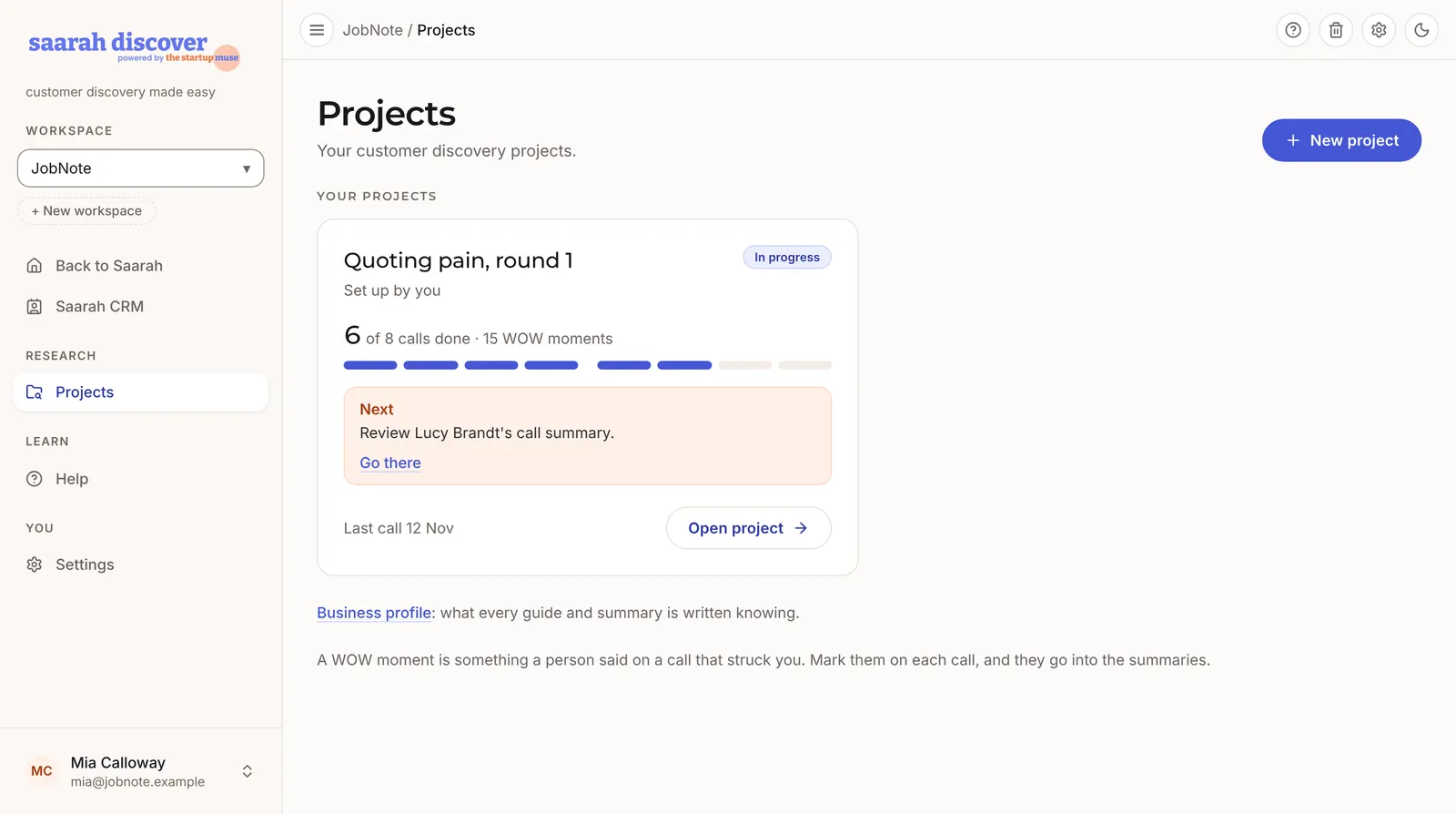
- Discoverdiscover.saarah.aiThe menu has Projects, Help and Settings. Back to Saarah and Saarah CRM are at the top.
- Saarah CRMcrm.saarah.aiThe menu has Contacts, Record, Help and Settings, with Back to Saarah at the top.
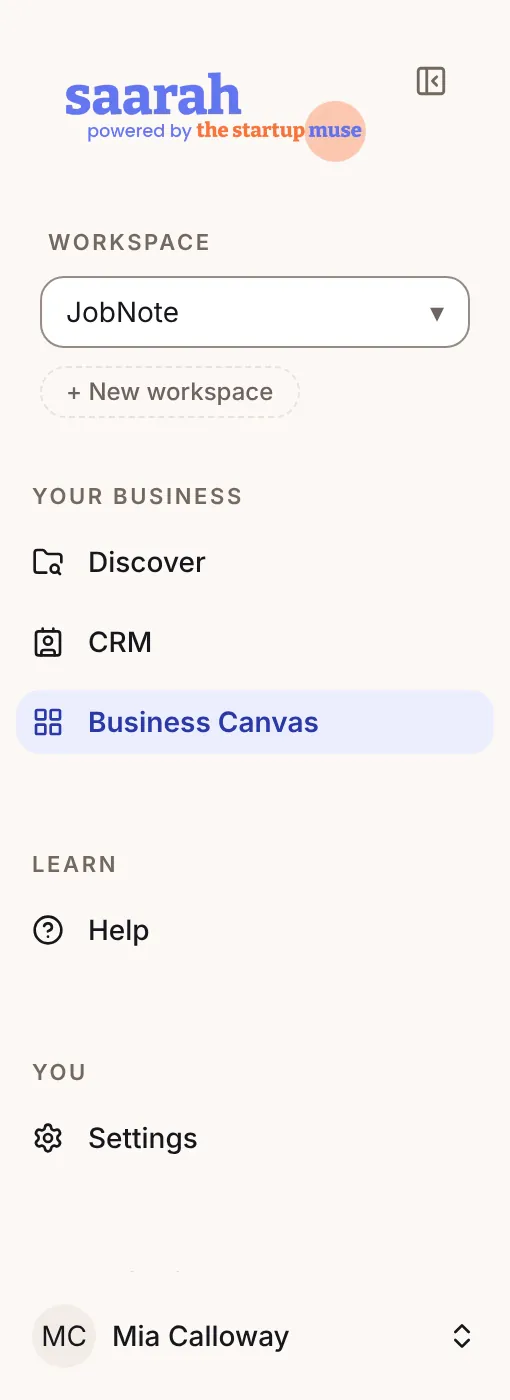
Your workspace is shown at the top of every menu. If you have more than one, switch there, and the other two apps switch with you.
Help has the guide for whichever app you're in, and it's kept up to date, so trust it over this page if the two ever disagree. Settings is where you change your name and password, set up a passkey, switch between light and dark, and download your data.
In Discover and the CRM there are three small icons at the top right as well. The question mark is Help, the cog is Settings and the bin is the Trash.
To get hold of us, use Talk to us in the main app's menu. Feedback and Book an appointment are both short forms that come to the team at The Startup Muse, and we reply by email. You can also write to support@saarah.ai.
The first time you sign in you may see a welcome page with a few short videos. If you want to watch them again, they're under Welcome videos in the menu under your name, and at the top of Help.
Your free period and codes
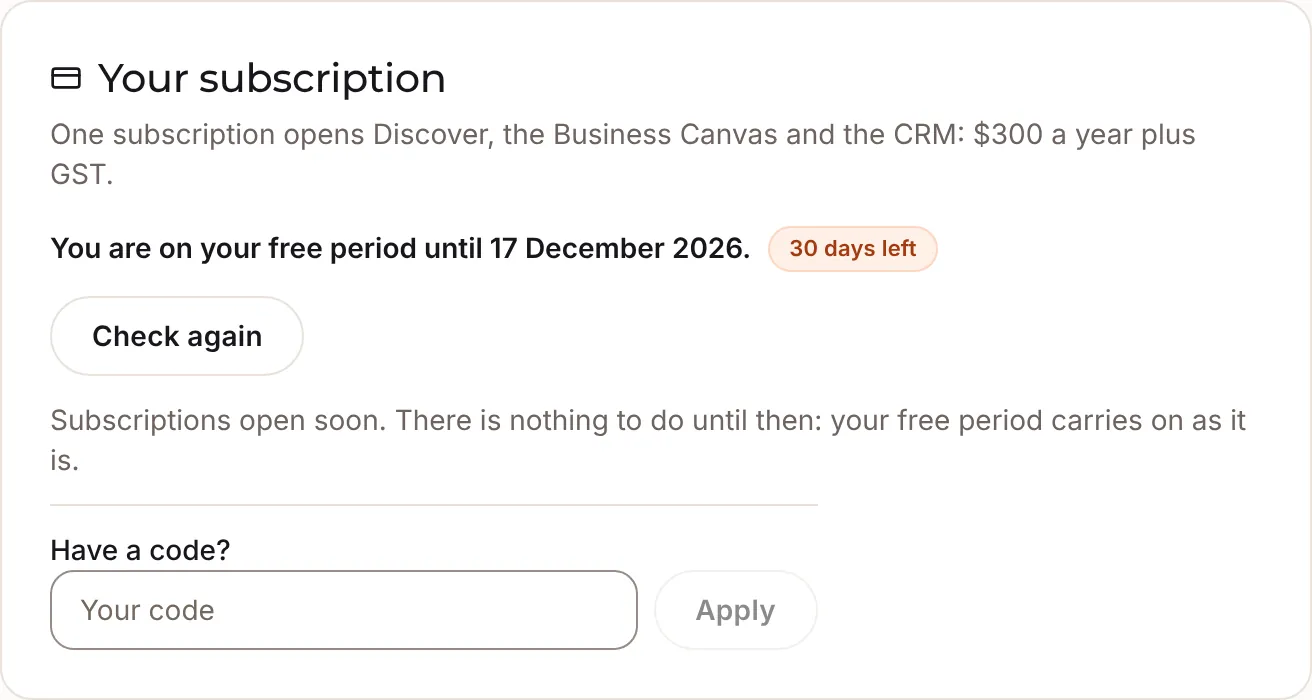
Saarah is free for 30 days from the day you sign up, and we don't ask for a card. After that, one subscription covers all three apps. We haven't opened subscriptions yet, so for now there's nothing to pay and nothing you need to do. To see how long you have left, open Settings at app.saarah.ai and look at Your subscription, the first card on the page.
If we gave you a free-access code, type it under Have a code? on the same card and choose Apply. The card then shows the new date. Discover and the CRM have a Subscription card in their Settings too, but codes are only entered here.
Discover
Work out what you need to learn, talk to people, and see what they told you.
Build hypotheses to test
A research project is built around one thing you need to find out, plus your best guesses at the answer.
Start a research project
On Projects, choose New project. All it needs is a name, and you can fill in the rest later. If you close the box halfway through, nothing is lost. Open New project again and your typing is still there, or choose Start again to clear it.
| Field | What it is |
|---|---|
| Project name | A short name you'll recognise on the Projects page. |
| Description | Optional. A note for you and your team on what this round is about. Saarah reads it, though she leans mostly on the research issue. |
| Research issue | What you need to learn from customers before you can make a decision. One or two sentences. |
| Hypotheses | Things you suspect are true about your customers. Put one in each box and use Add a hypothesis for more. |
Write a research issue that leads to a decision
A good research issue ends with a decision you'll make once you know the answer. "Learn about tradies" gives you nothing to decide. "Find out whether quoting is painful enough that owners would pay to fix it, so I can decide whether to build JobNote" does.
Write hypotheses you can prove wrong
A hypothesis is a statement about your customers that a conversation could show to be false. The most useful ones describe what people already do. Anything about what they might do one day is much harder to trust. Three to five per project is about right.
| Weak | Why | Stronger |
|---|---|---|
| Tradies would love an app for quotes. | People are polite about ideas, so this one can never fail. | Owners of trade businesses with one to five staff spend three or more hours a week writing quotes after hours. |
| Quoting is a problem. | Too vague to check. A problem for whom, and how big? | Owners lose jobs because their quote arrives days after the site visit. |
| People would pay $30 a month. | Anyone will say they'd pay. It costs them nothing. | Owners already pay for a quoting or invoicing tool, or pay someone to do the paperwork. |
| JobNote will save time. | This is about your product. A hypothesis should be about the customer. | Owners would rather talk through a quote on site than type it later. |
- Project name
- Quoting pain, round 1
- Research issue
- Find out how small trade businesses produce quotes today, what it costs them, and whether it hurts enough that they'd pay to fix it, so I can decide whether to build JobNote.
- Hypotheses
- Owners with one to five staff write quotes after hours, and it takes them three or more hours a week.
- Slow quotes lose jobs: owners can name a job they lost because the quote went out late.
- Owners already pay for something to help with quotes or invoices (software, a bookkeeper, a family member's time).
- Owners would rather talk through a quote on site than type it later.
Each hypothesis on the Plan tab has a small tick beside it. It turns the text green and that's all it does. It's handy for keeping your place while you read through them, but nobody else sees it and it's gone when you leave the page.
Get your conversation guide ready
Saarah writes you a first draft from your business profile, your research issue and your hypotheses. You use the same guide for every call in the project.
The project's tabs
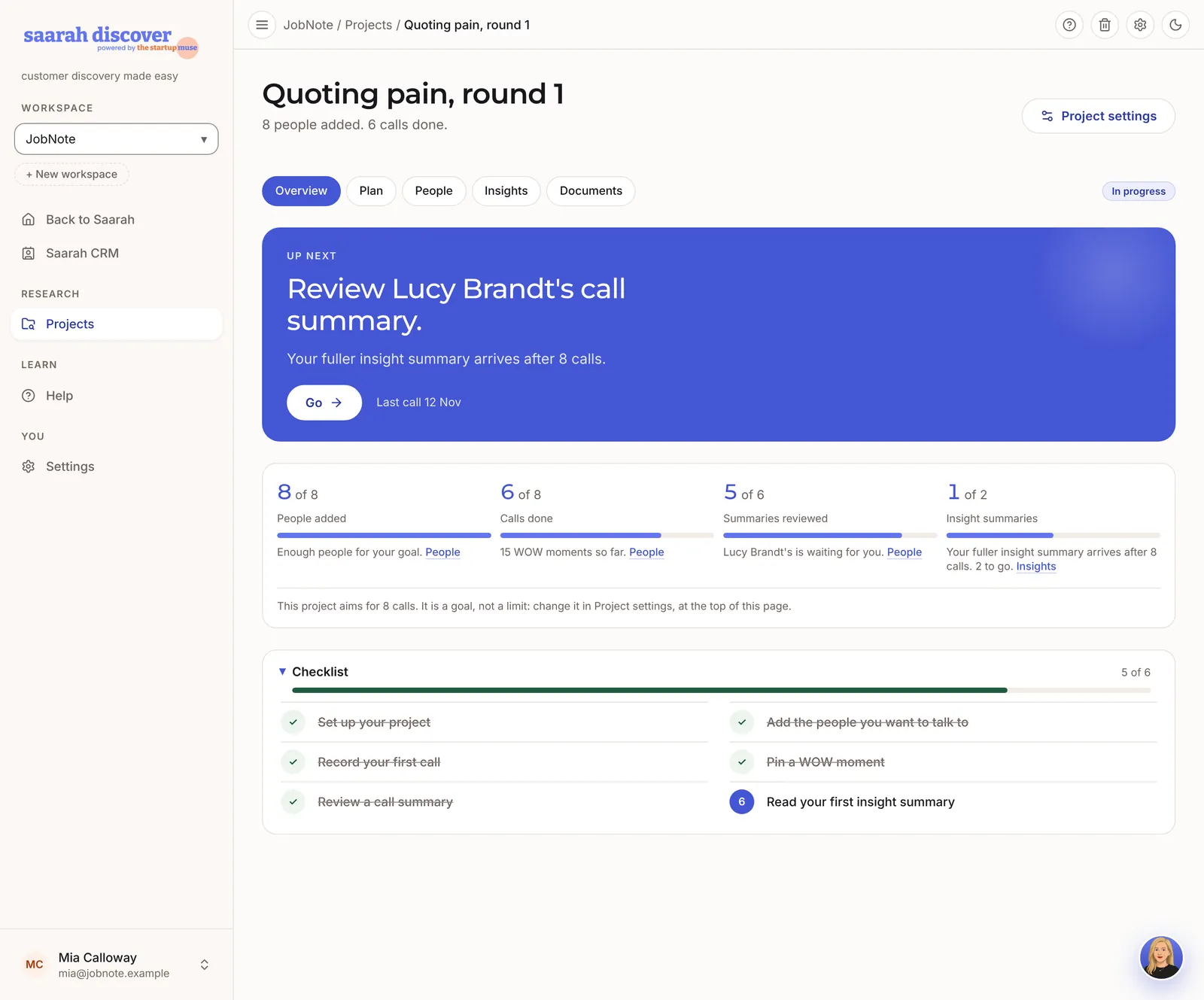
Each project has five tabs across the top: Overview, Plan, People, Insights and Documents. Overview always has an Up next panel with the one thing to do now and a button that takes you there. If you ever lose track of where you're up to, go to Overview.
Generate the guide
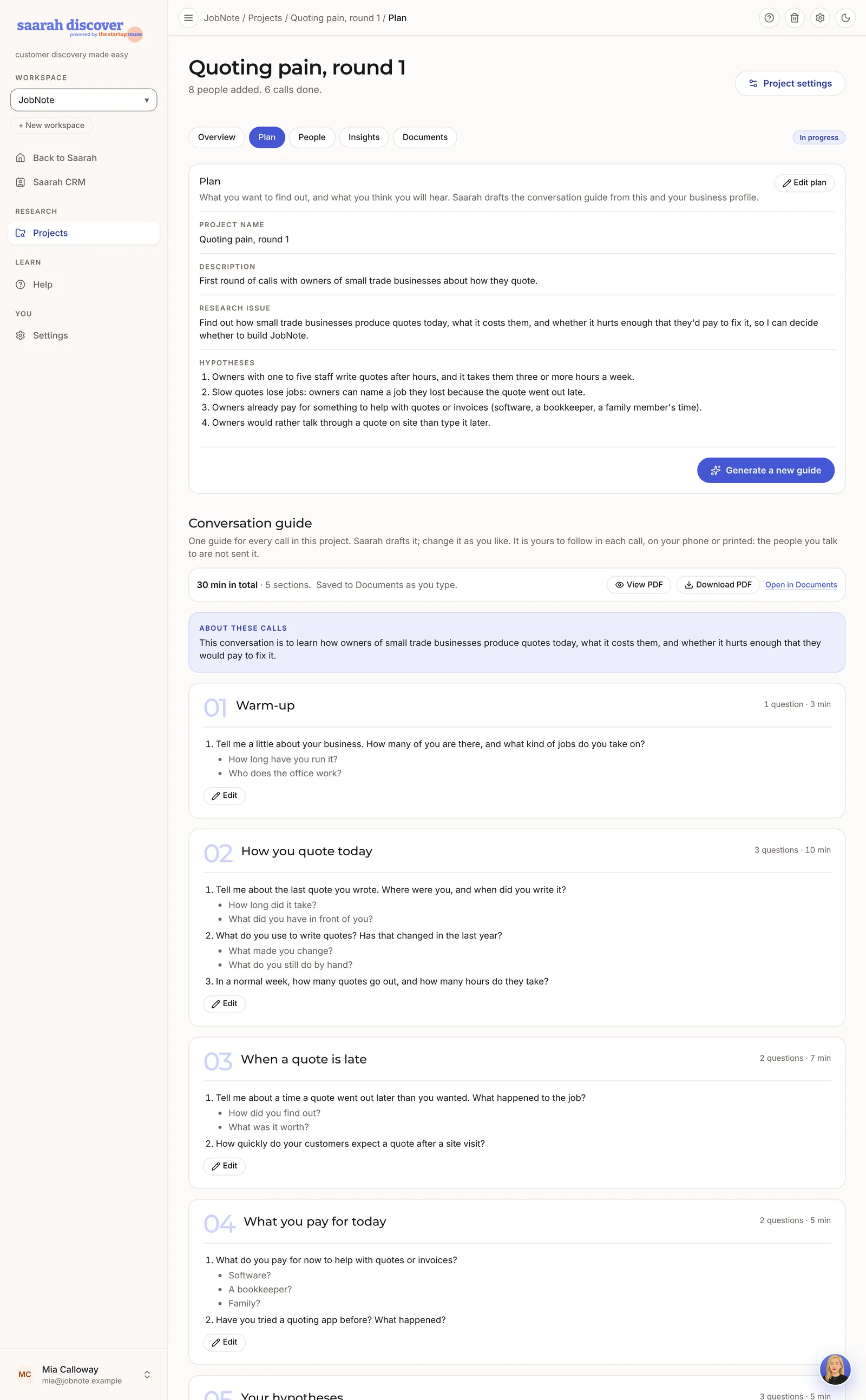
- Open the Plan tab. The project's name, description, research issue and hypotheses are at the top.
- Choose Generate conversation guide. It takes a minute or two, and you don't have to wait on the page.
- Read it through. The bar at the top adds up the minutes, which tells you how long to ask people for.
- Choose Edit on a section to change its title, minutes and questions. It saves as you type. First drafts nearly always have more questions than you'll get through, so cut it back to the ones your hypotheses depend on before you book anyone.
- Look for notes in [square brackets]. Those are spots where Saarah needs your own words, such as how you'd describe what you offer. A notice above the guide lists the sections that have them. Replace each one with what you'll actually say.
The last section of the guide asks each person whether they agree with your hypotheses. Leave it at the end. By then they've already told you what they really do, so hearing your theory can't colour their answers.
View PDF shows the guide as it prints, and Download PDF saves a copy to take with you. The guide is only ever for you, and the people you talk to never see it. Generate a new guide throws away your edits and starts again, so Saarah checks with you first.
How you quote today · 10 min
- Tell me about the last quote you wrote. Where were you, and when did you write it?
- How long did that one take, from the site visit to the customer getting it?
- What do you use to write quotes? Has that changed in the last year?
Your hypotheses · 5 min
- Some owners tell us they'd rather talk a quote through on site than type it later. Is that true for you? Why?
Set how many calls you'll aim for
Project settings, beside the project's name, holds the number of calls to aim for. A new project starts at 10, and you can change it to anything from 1 to 50 whenever you like. Nothing stops you doing more calls than the goal. The number does matter, though, because Saarah writes an insight summary after 5 calls and another when you reach your goal (see step 6). Project settings is also where you set the client, the owner, the team and who can see the project.
Run the interviews
Discover calls every conversation a call, whether it's face to face, on the phone or on video. It won't ring anyone or book anything for you. You have the conversation, and Discover either records it on your phone or takes the recording afterwards.
Add the people you'll talk to
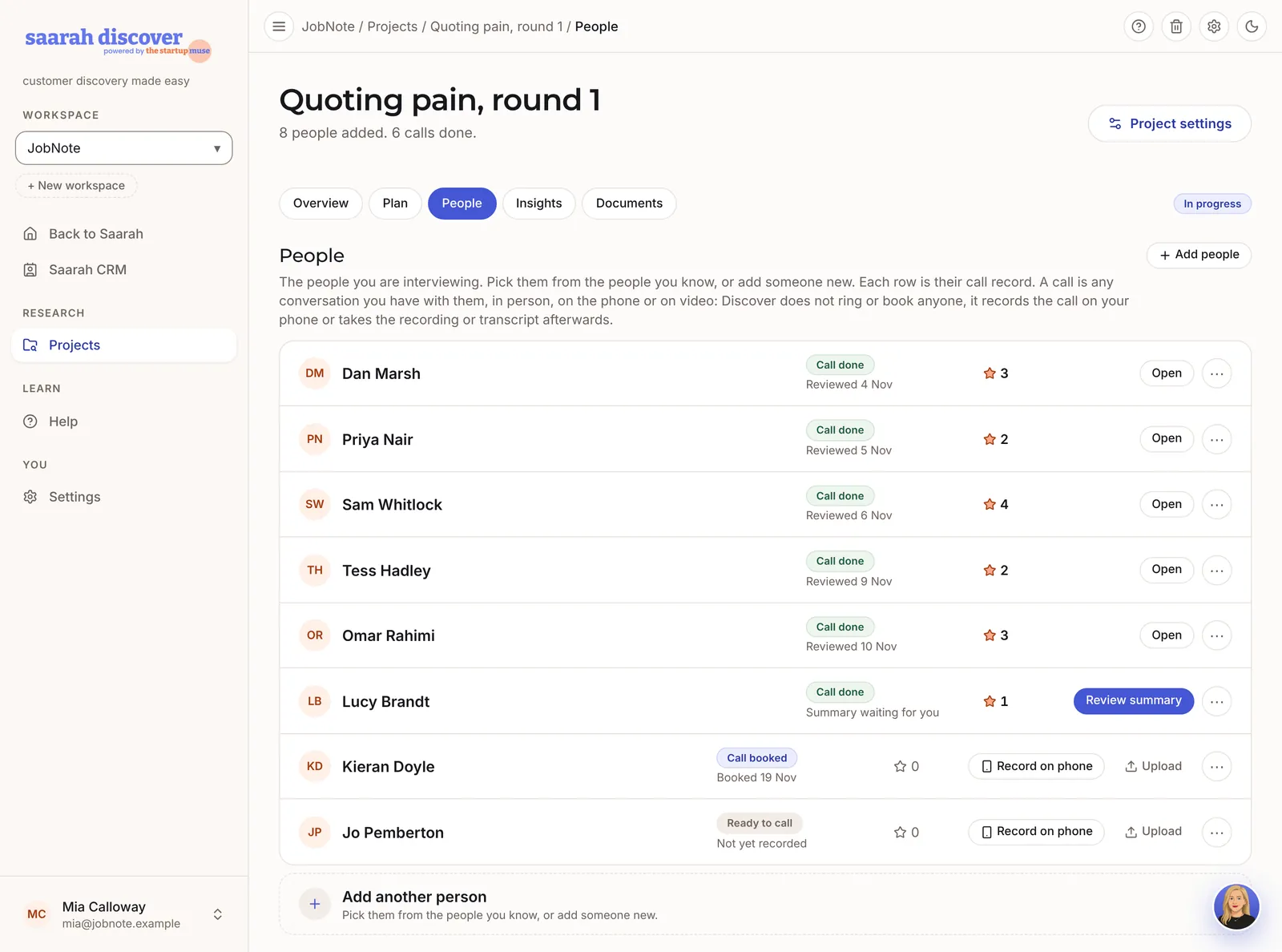
- Open the People tab and choose Add people.
- Pick people from your contacts. In a new workspace there won't be any yet, so choose Add a person. Later the button reads Not on the list? Add someone new. A name is enough.
- Adding someone doesn't contact them. You still need to ask them for the call yourself, however you'd normally get in touch.
Each person in the list has a badge saying In this project, In another project, Call in another project or Not in a project. It's there so you don't ask the same person twice by accident.
Mia aims for 8 calls. She adds Dan (a plumber with three vans), Priya (an electrician who works alone), Sam (who runs a carpentry crew of five) and five more owners from a local trades Facebook group. She messages each of them, asks for 30 minutes and offers to buy the coffee.
Three ways to get a call into Discover
You'll find all three at the top of the person's page. They're also on the person's row in the People tab, where the two uploads are tucked under Upload.
| Choose | When | What happens |
|---|---|---|
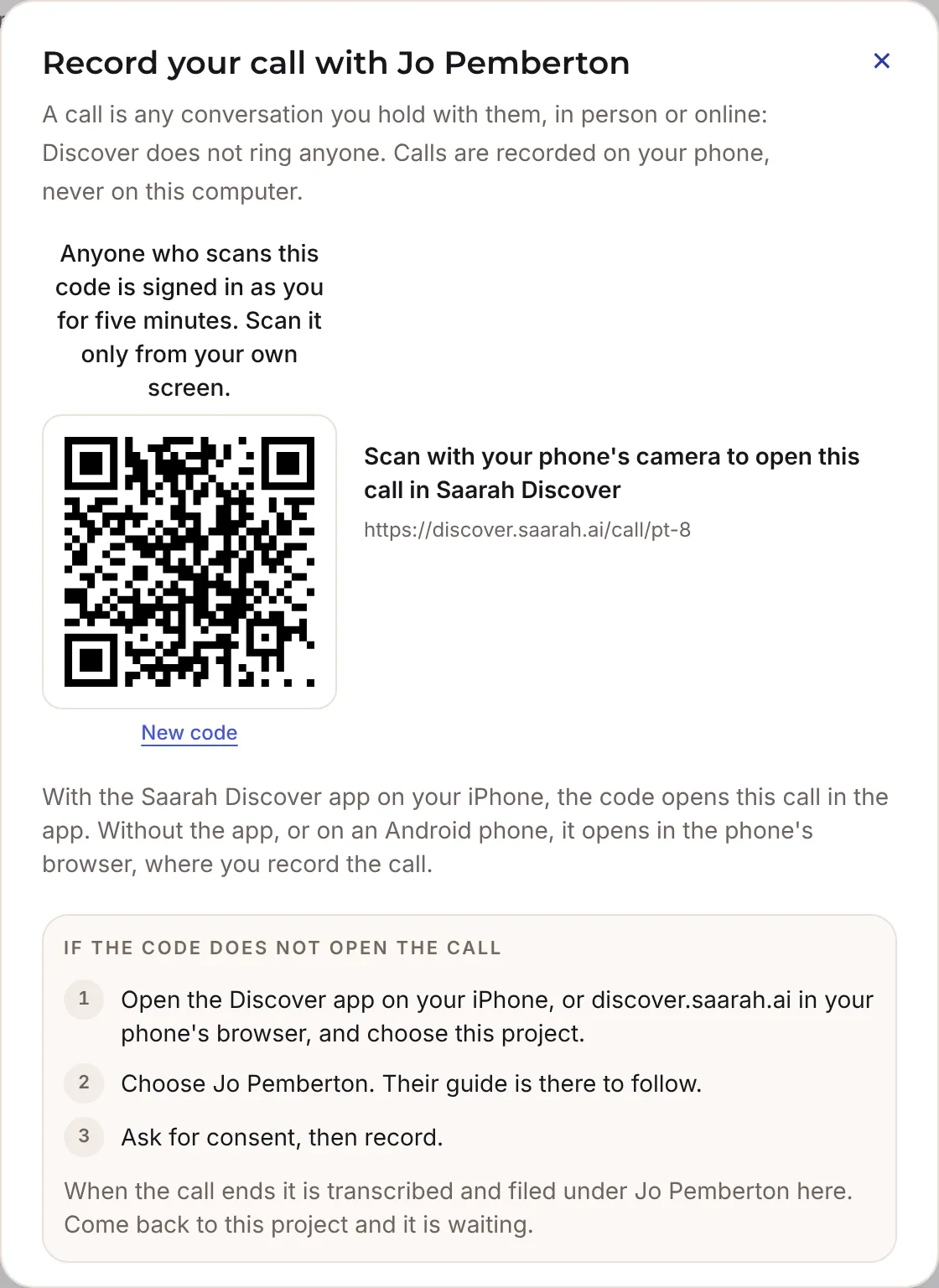
| Record on phone | You are with the person, or on a call you can hear from your phone. | Discover shows a code. Scan it with your phone's camera. On an iPhone with the Saarah Discover app, the person's call opens in the app. Without the app, or on an Android phone, it opens in the phone's browser on a page called Open your call on this phone: choose Continue to my call and record there, with no password to type. Either way you have the guide in front of you, and the recording is filed under that person when you finish. If you're recording in the browser, keep the page open until the upload is done. The code signs your phone in as you. It works once and lasts five minutes, so only ever scan it from your own screen. If it has expired, choose New code and scan again. |
| Upload audio | The call was on Zoom, Teams or a phone's voice memos. | Upload the recording. M4A, MP4, MP3, WAV, FLAC, OGG and WebM all work. Saarah transcribes it and works out who is speaking. |
| Upload transcript | You already have a transcript, or only notes. | Upload a PDF, Word (.docx), Markdown or text file. If you couldn't record, type up your notes and upload those. They count as a call. |
Tell everyone in the conversation that you're recording, and make sure they're happy with it.
Getting the most from a call
- Ask about things that have already happened. "Tell me about the last quote you wrote" gets you facts. "Would you use an app that…" gets you good manners.
- Don't pitch. Once you've described JobNote, every answer you get is about JobNote. Keep your idea until the end, or leave it out altogether.
- Ask what the problem costs them in money and in time, and what they already pay for or put up with.
- When someone says "it's a nightmare", ask about the last time it happened.
- Let them talk. You don't have to ask every question in the guide, and if they've already answered one, skip it.
- When something surprises you, tap WOW moment on your phone. It's saved against that point in the call so you can find it later.
After each call
Once a call is in, the one job left for you is to read Saarah's summary and correct it.
Read and review the call summary
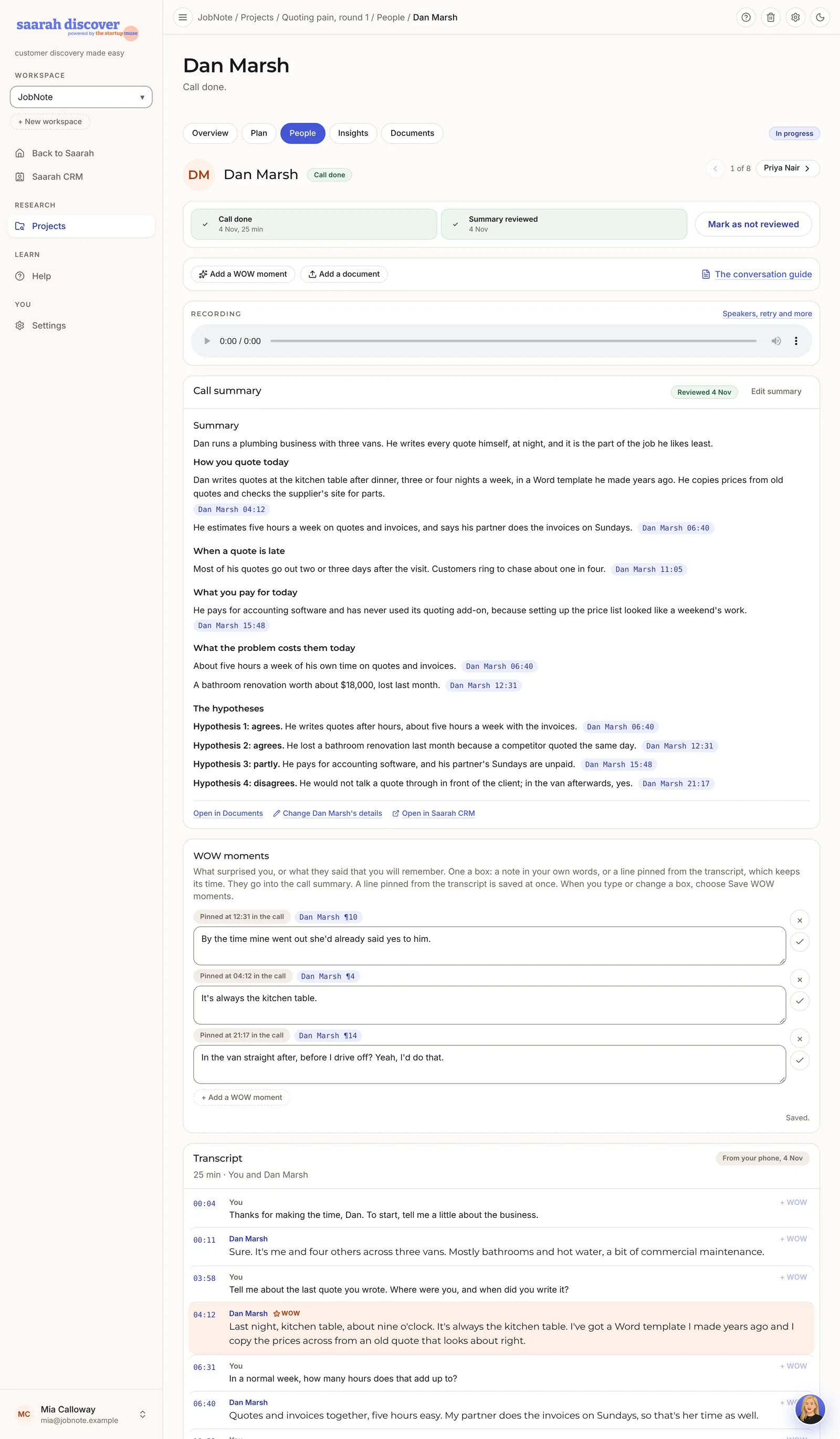
A minute or two after a call arrives, Saarah has read the transcript and written a call summary. It follows the order of your guide, and every point is tagged with who said it and when. Click the time to jump to that line in the transcript, and Back to where you were reading to come back.
- Open the person's page. You'll see the recording, the call summary, your WOW moments and the transcript.
- Check the points against the transcript, particularly anything that surprises you. Saarah gets things wrong sometimes. She might call someone's help "unpaid" when nobody actually said so. If a tag reads [Name source], she couldn't pin the point to one line, so you'll need to find it in the transcript yourself.
- Take extra care over the hypothesis lines. Each starts "Hypothesis 1: agrees", "disagrees" or "partly". Use "partly" for someone who liked the idea but not, say, where or when. If you change one, stick to those three words exactly, because Saarah counts them later and anything else is counted as no clear position.
- Choose Edit summary to fix anything. A line that starts with # is a heading, and a line that starts with a dash is a point. Don't touch the [Name 04:55] tags, as they're what link each point back to the transcript.
- Choose Mark as reviewed.
How quotes are written today
Hypothesis 2: slow quotes lose jobs
Mia is happy with it and chooses Mark as reviewed. She also pins Dan's line about losing the bathroom job as a WOW moment.
Keep your WOW moments
A WOW moment is anything from the call that made you sit up. You can mark one in three ways:
- tap it on your phone while you listen;
- highlight words in the transcript and choose Make it a WOW moment, or choose + WOW, shown faintly beside every line, to pin a whole line;
- choose Add a WOW moment and type it in.
Lines you pin from the transcript are saved straight away. Ones you type or edit aren't, so choose Save WOW moments and wait for the list to say Saved.
If you came away with anything else, such as a photo of a whiteboard or a price list they showed you, attach it to the person with Add a document.
Read what you learned
After five or so calls you'll start hearing the same things twice. The Insights tab is where Saarah pulls those threads together.
The four kinds of summary
| Summary | Reads | When it's written |
|---|---|---|
| Call summary | One call's transcript and its WOW moments | By itself, after each call |
| Insight summary | The call summaries so far | By itself, after 5 calls and again at your goal |
| Conversations summary | The call summaries so far | When you choose Summarise conversations |
| WOW themes | Your WOW moments | When you choose Summarise WOW moments |
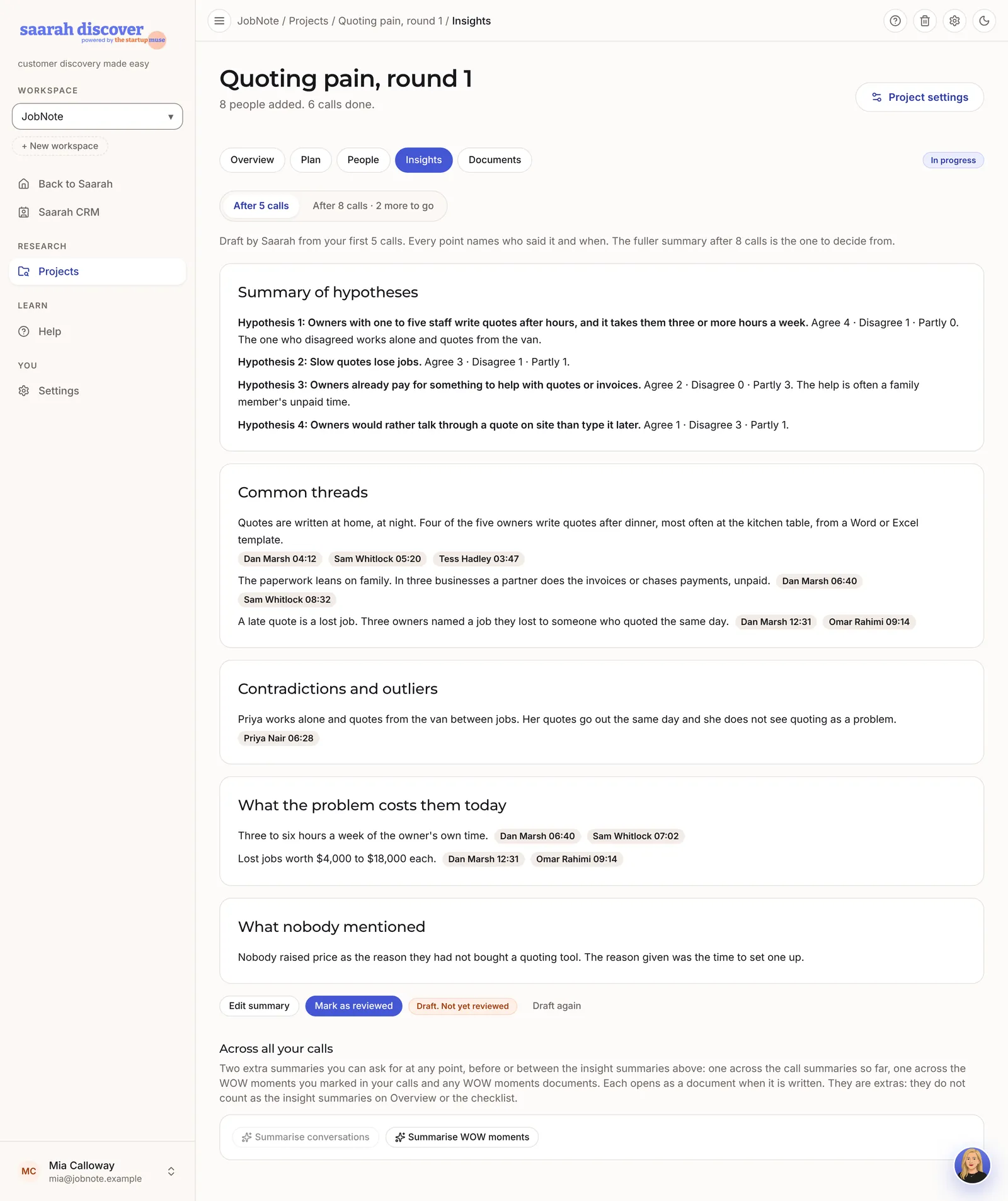
Insight summaries are on the Insights tab. As with call summaries, every point is tagged with who said it and when, and clicking the name opens their transcript at that line. If you've corrected some call summaries since, choose Draft again and Saarah rewrites it. If your goal is 5 calls or fewer you get one insight summary, when you reach the goal.
Decide what happened to each hypothesis
The insight summary counts how many people agreed, disagreed or partly agreed with each hypothesis. Those counts come from the hypothesis lines in your call summaries, so fix those first and then choose Draft again. Then go through your hypotheses one at a time and write down what you believe now. Don't be disheartened if one turns out to be wrong. Finding that out after eight conversations is a great deal cheaper than finding out after you've built the thing.
| Hypothesis | What she heard | Verdict |
|---|---|---|
| 1. Three or more hours a week | 6 of 8 owners spend three to six hours a week; the two sole traders spend less. | Supported |
| 2. Slow quotes lose jobs | 5 of 8 named a lost job; all five were for jobs over $2,000. | Supported |
| 3. Already paying for help | 4 use invoicing software, 3 rely on a partner's unpaid time, 1 pays a bookkeeper. | Mixed |
| 4. Prefer talking on site | Most quote from the van or at home; talking on site in front of the client felt awkward to 5 of 8. | Challenged |
Mia didn't see the last one coming. Owners like the idea of a voice note, but they want to do it in the van afterwards. Nobody wants to talk prices into a phone in front of the client.
Ask Saarah
You can also just ask. Click Saarah's picture at the bottom right of any project page and type a question about your calls. She answers from the summaries and transcripts and tells you who said what. For example:
- "Which owners mentioned losing a job to a faster quote?"
- "What tools did people say they use for invoices?"
- "Where do the sole traders differ from the crews?"
She only knows about your research. If your question is about how Discover works, use Help. The chat isn't kept once you close the browser.
Documents and PDFs
The Documents tab lists everything in the project: the guide, recordings, transcripts, summaries and your notes. Any guide or summary has a Download PDF button, which is handy if you want to send one to a co-founder or an adviser.
Business Canvas
Nine boxes that describe the business, and a way to check what you wrote against what people told you.
Build your Business Canvas
The canvas puts your business on one page. There are nine boxes, and you fill them in an order that starts with your customer and finishes with what nobody else could copy.
Open the canvas
When your calls have reached the project's goal and you have reviewed the call summaries and an insight summary, Discover's Up next offers your Business Canvas, with Open the Canvas. You don't have to wait for that. You can go straight to app.saarah.ai/canvas whenever you like. Check the workspace at the top of the menu first, because a canvas belongs to its workspace and only reads the Discover projects in it.
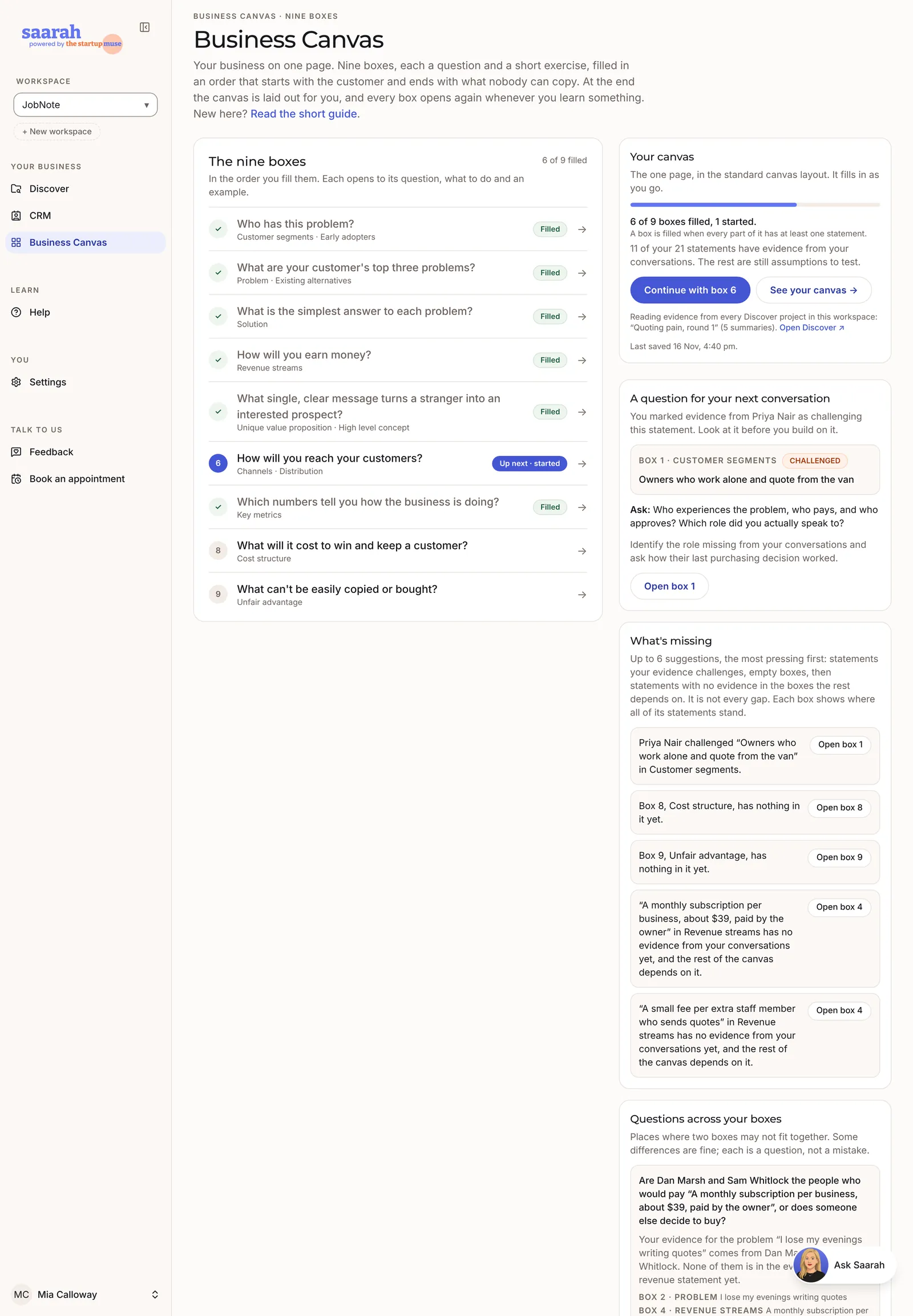
The Business Canvas page has three parts:
- Your canvas tells you how many of the nine boxes are filled or started, how many statements have evidence, and which Discover projects that evidence comes from. Start with box 1 (later Continue with box …) takes you to the next box. See your canvas → shows all nine on one page.
- The nine boxes are listed in the order you fill them, and each row opens its box. A box says Filled once every part of it has something written, and Started once only some parts do. The first box that isn't filled says Up next.
- Down the side, once you have some statements and evidence, Saarah suggests a question for your next conversation and points out what's missing. Versions live here too. There's more on all of this in step 8.
None of the boxes are locked. You can open and change any of them whenever you want, and you'll probably come back to most of them as you learn more.
How a box page works
Every box page is laid out the same way. It starts with the box's question and why it matters, then tells you what to do and shows a worked example from a well-known company. The fields where you write come last. Boxes you've already filled that this box depends on are shown beside the work, so you don't have to keep them in your head.
- On a first visit, Skip to your answer takes you past the teaching to the fields.
- The numbered row at the top opens any other box, with a tick on the ones you've filled and a dot on the ones you've started.
- Write short statements, one idea each. Write a problem the way your customer would say it. A solution, a price or a channel is your own best guess for now, and you'll test it later.
- Save and continue saves the page and moves to the next box (on box 9 it's Save and see your canvas). Save and stop here saves and goes back. A statement marked Not saved yet isn't on the canvas until you save.
- If you leave with unsaved words, Saarah asks first: Save and leave, Leave without saving or Stay here. Unsaved words are kept in that browser tab only.
The nine boxes, with Mia's answers
Here are the nine boxes in order. For each one we give the question, a few pointers on what to write, and what Mia put down for JobNote after her first round of calls.
Box 1 · Customer segments: who has this problem?
Say who they are before you describe the problem. "Small businesses" is too broad, so be specific. The customer is whoever pays and the user is whoever uses it, and if those are different people, list both. Then fill in Early adopters, the people who feel the problem most and have already tried to fix it.
- Customer segments
- Owners of plumbing, electrical and carpentry businesses with two to five staff, who quote jobs themselves.
- Early adopters
- Owners who quote over $2,000 jobs at least weekly. Owners whose partner or family does the paperwork unpaid. Owners who already tried a quoting app and gave up.
Mia's calls changed this box. Sole traders turned out to spend less time on quotes, so her segment now starts at two staff.
Box 2 · Problem: what are your customer's top three problems?
Write up to three problems, each in the customer's words. Under Existing alternatives, list what people do about these problems today, including the options that don't work very well. If nobody is doing anything to cope, the problem may not be worth solving.
- Problem
- "I lose my evenings writing quotes."
- "By the time my quote goes out, someone else has the job."
- "Turning a quote into an invoice means typing it all again."
- Existing alternatives
- Word or Excel templates. Invoicing software with a quotes add-on. A partner doing it on Sundays. Quoting by text message and hoping.
Box 3 · Solution: what is the simplest answer to each problem?
Write one solution for each problem, in the same order, so solution 1 answers problem 1. Try to name the smallest thing that would make the problem go away. A list of features can wait.
- Talk through the job in the van; get a draft quote before you drive off.
- Send the quote to the customer from your phone on the same day.
- Turn an accepted quote into an invoice with one tap.
Box 4 · Revenue streams: how will you earn money?
For each source of revenue, say who pays, what they pay for and how often. Put a number on it, even if it's rough. Keep in mind that revenue means what your business earns. The check will sometimes offer you what your customers spend today, on their software or their bookkeeper. That helps when you set a price, but it isn't your revenue, so choose Doesn't belong here.
A monthly subscription per business, about $39, paid by the owner. A small fee per extra staff member who sends quotes.
Box 5 · Unique value proposition: what single, clear message turns a stranger into an interested prospect?
Start with the six parts, which are working notes: For, Who, The [your business idea] is a, That, Instead of, We. Saarah reads them back to you as one sentence, and a button under it copies that into your own sentence. From there, rewrite it until it sounds like something a customer would say to a friend. Last, add your High level concept, which is your "X for Y".
- For
- Trade business owners with a small crew
- Who
- Lose their evenings to quotes, and lose jobs to faster quoters
- JobNote is a
- Phone app
- That
- Turns a voice note in the van into a quote you can send before the next job
- Instead of
- Typing it up at the kitchen table
- We
- Use the words tradies already use for parts and labour
- One sentence
- Quote the job before you leave the street, and get your evenings back.
- High level concept
- A dictaphone that writes your quotes.
Box 6 · Channels: how will you reach your customers?
This box has two lists. Channels are how people hear about you, and for each one you say whether it's free or paid. Distribution is how the sale happens, meaning who sells it and who closes it. Put the one you'll start with at the top of each list. The arrows beside a line move it up or down.
- Channels
- Local trades Facebook groups (free). Plumbing supply store counters (free, with a flyer). Word of mouth between owners (free).
- Distribution
- Mia sells directly in the first 20 businesses. Later, a free trial that converts in the app.
Box 7 · Key metrics: which numbers tell you how the business is doing?
Pick one number for each of five steps, and say what counts and where you'll see it. In the early days the second and third steps matter most.
| Step | JobNote's number | Where she'll see it |
|---|---|---|
| Found you | New trial sign-ups each week | App store and sign-up page |
| Good first go | Owners who send a first quote within 3 days | The app |
| Came back | Owners who send 5 or more quotes in their first month | The app |
| Paid | Paying businesses each month | Billing |
| Told someone | New owners who came from a referral | Ask when they sign up |
Box 8 · Cost structure: what will it cost to win and keep a customer?
Two lists again, What you'll pay for and Finding and looking after customers. You don't need amounts yet. Tick Not sure on any line that's a guess.
- What you'll pay for
- An app developer. Voice transcription per minute. Hosting. Accounting software.
- Finding customers
- Flyers for supply stores. Mia's time visiting owners. Support by phone for the first customers (not sure).
Box 9 · Unfair advantage: what can't be easily copied or bought?
It's fine to leave this one blank for now. Being first, working harder or being cheaper don't count, because anyone can do those. Inside knowledge, a community or data nobody else has would count.
Ten years running the office of a plumbing company, and trust in the local trades groups. Mia knows this isn't much of a moat yet, and plans to come back to the box in a month.
See it on one page
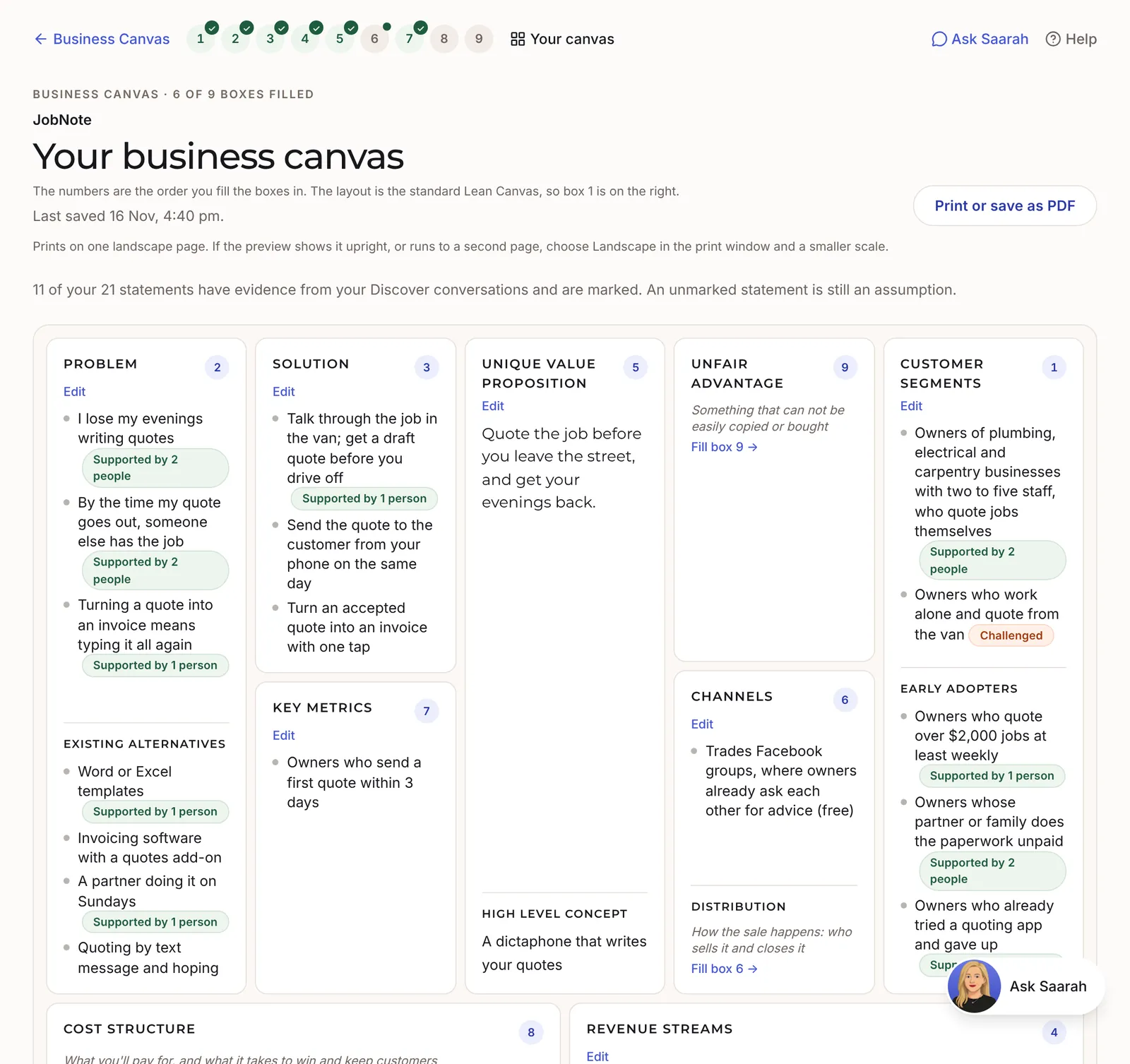
See your canvas → lays out the nine boxes in the standard lean canvas layout, with Edit under each box's title. The numbers show the order you fill the boxes in, which is why box 1 sits on the right. Print or save as PDF opens your browser's print window, set for one landscape page. If the preview shows it upright or on two pages, choose Landscape and a smaller scale. Mia's finished canvas is at the end of this walk-through.
Back your canvas with evidence
A filled box only tells you that something is written in every part of it (box 6 needs both Channels and Distribution, for example). Whether a statement is backed depends on what people told you in your conversations, and this step is about finding that out.
The four labels a statement can have
Once a statement is saved, it carries one of four labels that say how it stands against your Discover conversations.
- Assumption
- Every statement starts here. Nothing you've heard backs it up yet.
- Supported
- Points from your conversations back it up, and the label says how many people they came from.
- Challenged
- What people said goes against it. Have another look at the statement, or ask about it in your next conversation.
- Mixed evidence
- Some points back it and some go against it.
A point is one cited line of a Discover summary. Saarah wrote it as a summary, so it won't be the person's exact words. The name and time beside it open the transcript, where you can read what they actually said. A transcript you uploaded shows on the canvas side as plain text, and the line can't be highlighted there. The page tells you when that's the case, and Open the cited line in Discover takes you to it. The same moment can turn up in more than one point, so go by the number of people when you judge how strong the evidence is.
Check with Saarah
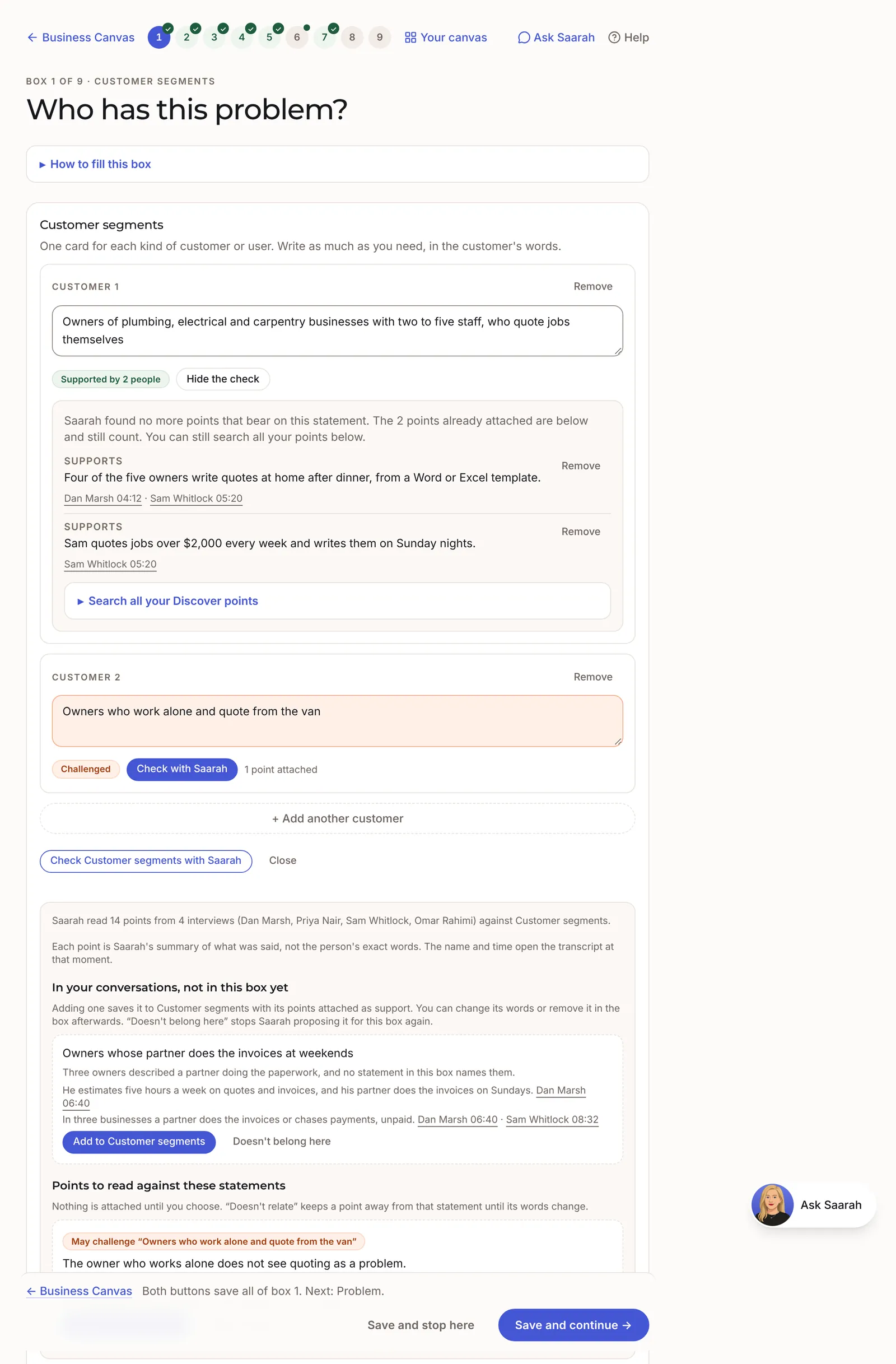
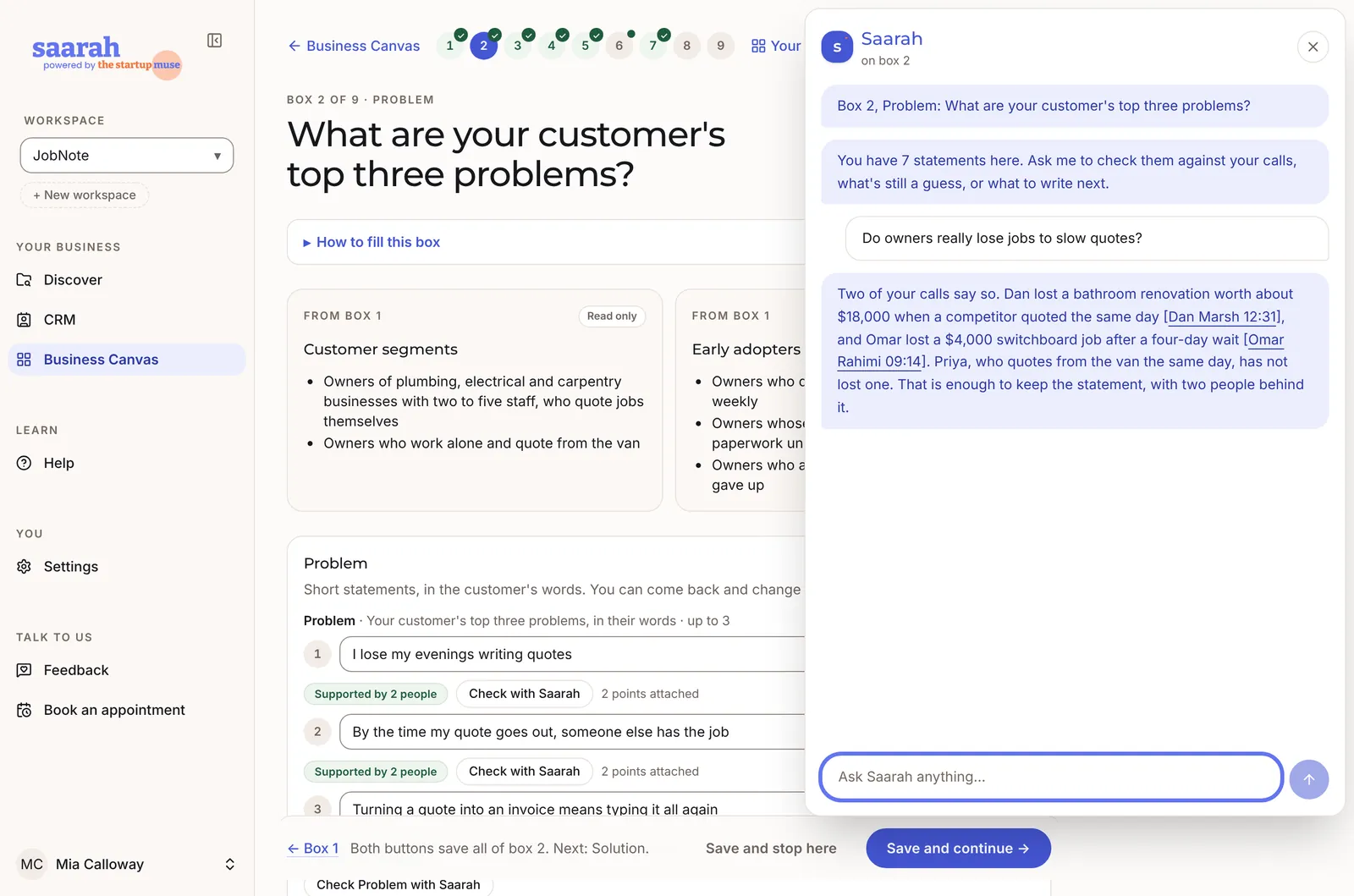
- Check with Saarah, on one saved statement, looks for points in your conversations that bear on it. While it's open the button reads Hide the check.
- Check this box with Saarah reads a whole list. In a box with two lists, each list has its own button, named for the list, such as Check Problem with Saarah. Save the box first, because the check only reads what's saved. It suggests statements that came up in your conversations but aren't in the list, tells you which of your statements nothing supports, and shows points to read against the rest. Boxes 7 and 8 hold numbers, so there's no check for them.
- Saarah doesn't attach anything until you say so. If you add a statement she suggested, it's saved with its points attached as support.
- When Saarah can't tell whether a point supports or challenges a statement, she tells you why and leaves the call to you.
- Doesn't relate and Doesn't belong here keep a point away from a statement or list. It comes back if the statement's words change.
Mia checks box 2. Problem 1 ("I lose my evenings writing quotes") comes back Supported by six people, including Dan's kitchen-table line. Problem 3 (retyping quotes as invoices) is Assumption: nobody raised it unprompted.
Saarah also suggests a statement Mia hadn't written, "I forget to chase quotes nobody answered." Four owners said something like it. Mia adds it, and it's saved as supported straight away.
In box 3, her old "talk through the job on site" line comes back Challenged, which is why she had changed it to "in the van".
Help on the Business Canvas page
- A question for your next conversation
- One statement worth testing next, and a question to ask about it. Take it into your next call.
- What's missing
- A few suggestions, with the most pressing first. Statements your evidence challenges come before empty boxes, and those come before unbacked statements in the boxes the rest depend on. It won't list every gap.
- Questions across your boxes
- Places where two boxes may not fit together, like a channel that doesn't reach your early adopters. Treat these as questions to think about. They don't mean you've made a mistake. Doesn't apply hides one until either line changes.
- Versions
- Give the canvas as it stands a name and choose Save as version. Preview shows what a version held. Restore puts it back for everyone in the workspace. It saves the current canvas as a version first, so you don't lose anything.
Save a version before each new round of calls. Putting "before" next to "after" is a good way to show a co-founder, a mentor or an investor what you've learned.
Ask Saarah on the canvas
Ask Saarah is in the top row of every box and by her picture in the corner. She reads your Discover summaries and your canvas. You can ask what your conversations say about a box, and if she suggests a statement you can add it from its card. She can also see a box check while it's open, so you can ask her to explain it.
Go round again
You'll keep coming back to your canvas. Whatever is still an assumption on it gives you the hypotheses for your next project.
- Look at the statements still marked Assumption or Challenged, and at A question for your next conversation.
- Turn the most important ones into hypotheses in a new Discover project (step 2).
- Generate a new guide, run the calls and review the summaries, as you did the first time.
- Come back to the canvas and check the boxes again. The canvas reads every Discover project in the workspace, so the new evidence is there waiting for you.
Mia's revenue box and box 2's third problem are still assumptions. Her second project, Pricing and invoices, round 2, tests:
- Owners who already pay for invoicing software would switch for quoting in the same app.
- Owners spend at least an hour a week turning quotes into invoices.
- An owner with two to five staff would pay $39 a month to send quotes the same day.
For the price question she plans to show a simple offer at the end of each call and ask for a pre-order, because someone putting money down tells her more than someone saying they would.
Mia's canvas after round 1
This is where Mia got to. The boxes are in the standard lean canvas layout, each line shows its evidence label, and the numbers show the order she filled them in.
2 Problem
- Evenings lost writing quotes 6 people
- Slow quotes lose jobs 5 people
- Forgetting to chase unanswered quotes 4 people
Existing alternatives
- Word or Excel templates
- Invoicing software add-ons
- A partner doing it on Sundays
3 Solution
- Voice note in the van becomes a draft quote
- Send it the same day from your phone
- Reminders to chase quotes
7 Key metrics
- First quote sent within 3 days
- 5+ quotes in first month
- Paying businesses
5 Unique value proposition
Quote the job before you leave the street, and get your evenings back.
High level concept
A dictaphone that writes your quotes.
9 Unfair advantage
- Ten years in a plumbing office; trust in local trades groups (not yet a moat)
6 Channels
- Local trades Facebook groups
- Supply store counters
Distribution
- Mia sells to the first 20 directly
1 Customer segments
- Owners of trade businesses with 2–5 staff who quote jobs themselves 6 people
Early adopters
- Quote $2,000+ jobs weekly
- Partner does the paperwork unpaid
8 Cost structure
- App developer · transcription per minute · hosting
- Flyers · Mia's time · phone support (not sure)
4 Revenue streams
- About $39 a month per business Assumption
- Fee per extra staff member who quotes Assumption
On a phone, scroll the canvas sideways.
Saarah CRM
Where you keep track of the people you talk to and when you said you'd get back to them.
Before you start
The CRM is at crm.saarah.ai, and CRM in the menu at app.saarah.ai opens it. You're already signed in, with the same account and the same workspace as Discover and the Business Canvas. Back to Saarah at the top of the CRM's menu takes you back.
The menu is short. You land on Contacts, and below it is Record. Help is under Learn and Settings is under You. Help holds the CRM's full user guide, and we keep it up to date.
Your contacts and Discover's people are one list. The people you add to a Discover project come from here, and anyone you add over there shows up here.
One thing the CRM doesn't do yet is send email to your contacts. The Email button on a contact opens your own mail program.
Search and quick add
Where: the top bar of every page
You'll find a search box and a + button at the top of every page.
To search
- Click the search box, or press ⌘K on a Mac (Ctrl+K on Windows) from anywhere.
- Type two or more letters to see matching contacts, by their name, their email address or where they work. From three letters it also finds notes and filed email by what was said.
- Use the arrow keys and Enter, or click a result to open it. Escape clears the box.
Search only finds what you're allowed to see. If nothing matches, it offers to add the contact for you.
To add something from anywhere
Click + to add a contact or upload a recording. You get the same form as on that page, without leaving the page you're on.
Adding and importing contacts
Where: Contacts, the Add contact and Import buttons
To add one contact
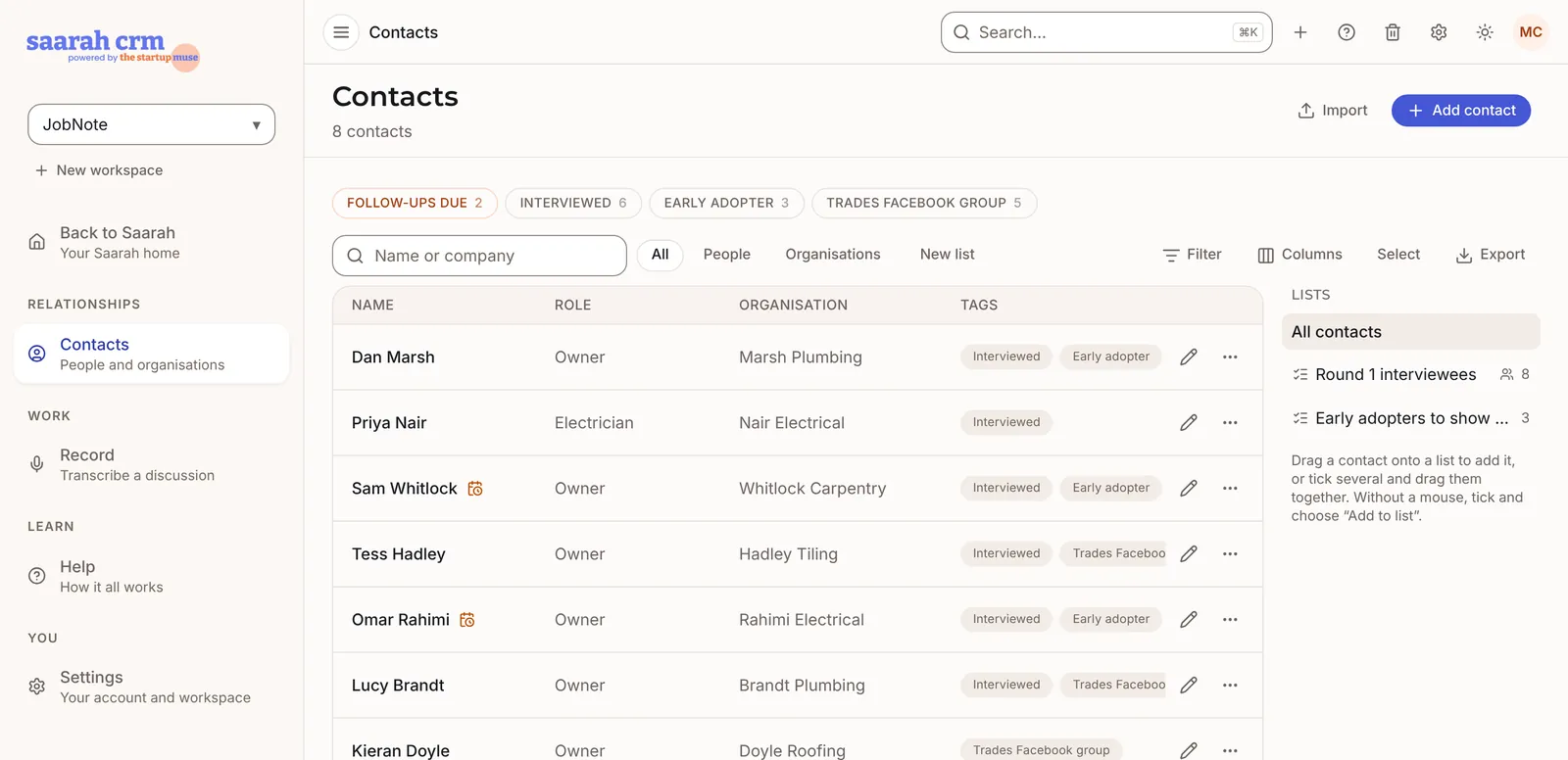
Add contact opens one form. The only thing you have to give is a name, which can be a first name, a last name or an organisation's name. A contact can be a person or an organisation, and Works at links a person to their employer, adding the organisation if it isn't there yet. If you close the form by mistake, open it again and what you typed is still there.
To import a list
- Choose Import and pick a CSV file. Download a sample CSV gives you one with the right column names.
- Match the columns. Saarah CRM guesses from your header row, and you correct what it got wrong.
- Check the file. Before it writes anything, the CRM tells you how many contacts it will create, how many it will update, and which rows it can't use and why. Nothing happens until you confirm.
If a contact in the file is already in the CRM, it's matched by email address and updated, so you don't end up with two. An update only fills in blanks and leaves what you already have alone.
The contact page
Where: Contacts, then open anyone
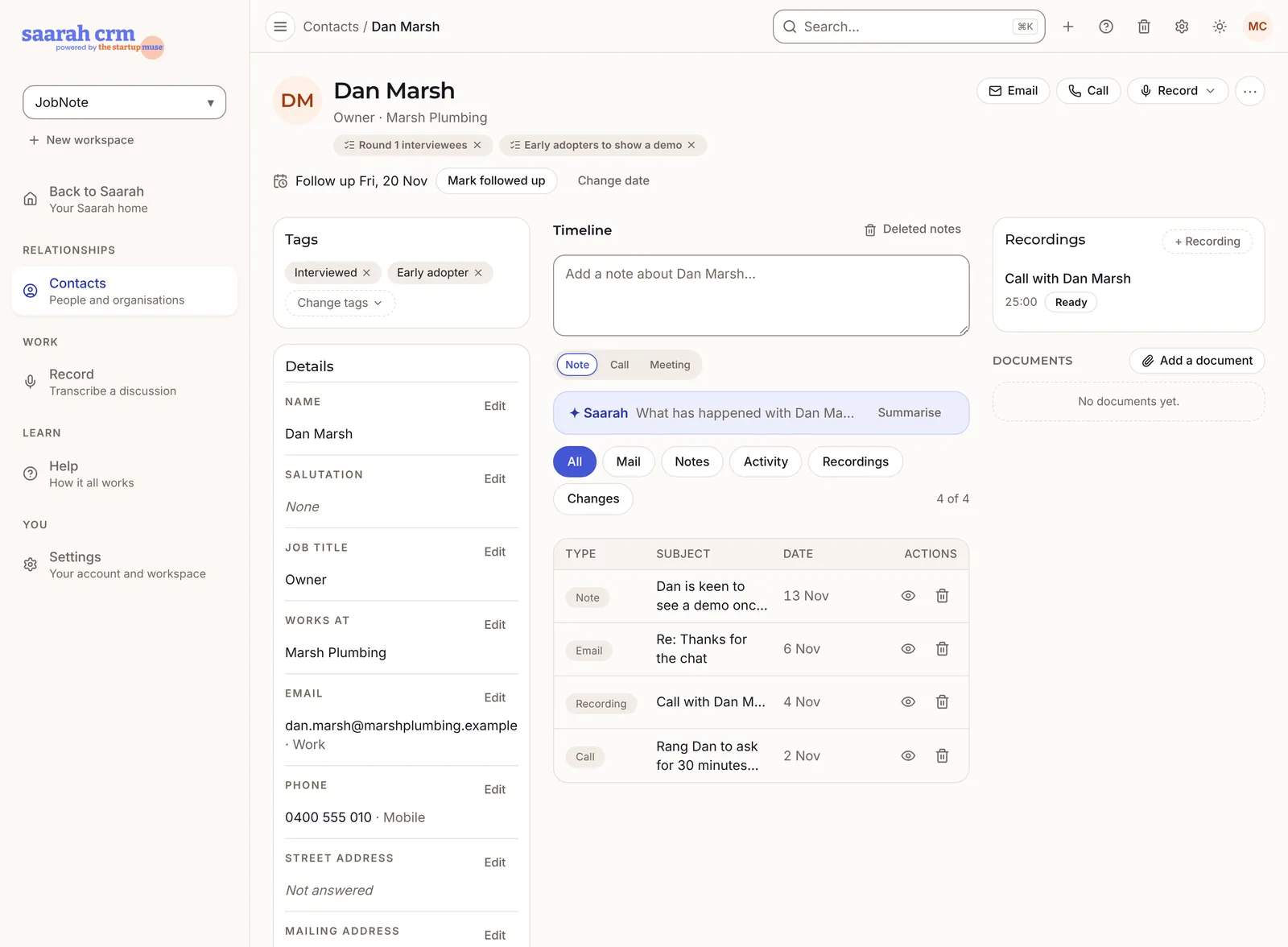
A contact's page has three columns. Their details are on the left, the timeline of what's been said is in the middle, and their recordings and documents are on the right. On a narrower screen the work moves under the timeline, and on a phone the three become tabs called About, Timeline and Work.
- Tags sit above the details. Change tags ticks every group that applies and saves when the menu closes.
- Details are edited a row at a time. Each row has an Edit button that opens a small form with Save and Cancel. Saving changes only that row, so two people editing different rows don't overwrite each other. Edit everything in the ⋯ menu opens the full form.
- Marketing consent is one of those rows. Setting it to Subscribed asks how consent was given and keeps the source, the date and who recorded it.
- The timeline has a box at the top that writes a Note, or logs a Call or a Meeting with when it happened. The pills above the list (All, Mail, Notes, Activity, Recordings, Changes) show one kind of entry at a time.
- The right-hand column holds the recordings attached to them and their documents. Each block has a dashed + that adds one with this contact already chosen.
- The chips under the name show any Missing important fields, and Do not market when they have unsubscribed.
- The buttons at the top right are Email (it opens your own mail program), Call, Record, and a ⋯ menu with Edit everything, Merge a duplicate, Convert to organisation (or person) and Move to Trash.
A contact moved to the Trash can be restored for 30 days, from the bin at the top right of every page.
Follow-up dates
Where: a contact's page, and the Follow-ups due chip on Contacts
- Open the contact and press Set a follow-up date.
- Choose Tomorrow, In 3 days, Next Monday or In 2 weeks, or pick another day and press Set.
- On the day, the contact shows under Follow-ups due, an amber chip above the Contacts list, until you deal with it.
- When you've followed up, press Mark followed up. Change date moves it.
The CRM won't remind you on the day. No email or notification arrives, so get into the habit of looking at the Follow-ups due chip when you open the CRM. A follow-up date is set on the contact, which means everyone who can see that contact sees the same date.
Tags, filters and saved lists
Where: Contacts, the chips above the list and the Filter button
A tag is a label you put on a contact, such as Prospects or Customers. A filter narrows the contacts you're looking at right now. A list is a tag, search or filter you've saved under a name so you can come back to it.
To build a filter
- Click Filter.
- Add conditions. You can filter on a tag they have or lack, owner, team, person or organisation, marketing choice, days since you last spoke, when they were added, missing important fields, and your custom fields.
- + And another condition narrows the result, because a contact has to match every condition in a group. + Or another group widens it, because a contact that matches any one group is shown.
- Click Apply. Clear empties the filter.
To save it as a list
- With the search, People or Organisations choice, tag and filter set, click Save this view and give it a name. Your lists are in the rail beside the contacts.
- Choose whether the list keeps the filter, so it shows whoever matches whenever you open it, or the contacts, a copy of who matches now that you add to and take from by hand.
- Tick Share with the workspace if others should have it too. A shared list shows a people icon.
- The ⋯ beside an open list renames, shares or unshares, or deletes it. Deleting a list leaves the contacts in it untouched.
Only you can see a saved list unless you share it. Everyone can open a shared list, though each person still only sees the contacts they could see anyway.
Changing many contacts at once, and choosing columns
Where: Contacts, the Select and Columns buttons
To change several contacts
- Click Select. Each row gets a tick box, and there is a Select all on this page box at the top.
- Tick the contacts you want. A bar shows how many are ticked.
- Choose an action: Add tag, Remove tag, Owner (a member or Unassigned), Marketing, Add to list, Export selection if you may export, or Move to Trash (administrators only, and it asks first).
Select works on one page at a time, which is up to 50 rows. Each contact that changed gets a line in its history.
To choose columns
Click Columns and tick which ones the rows show: role, organisation, owner, team, tags, last contact, marketing and created. The name and the row's buttons stay in place while the columns scroll. Your choice is remembered in this browser, and it doesn't affect anyone else.
To take a list with you
Export gives you a CSV of the list as you have filtered it. The button shows only if you have the export permission, which an administrator grants in Settings, People.
Recording a discussion
Where: Record in the menu, or Record on a contact's page
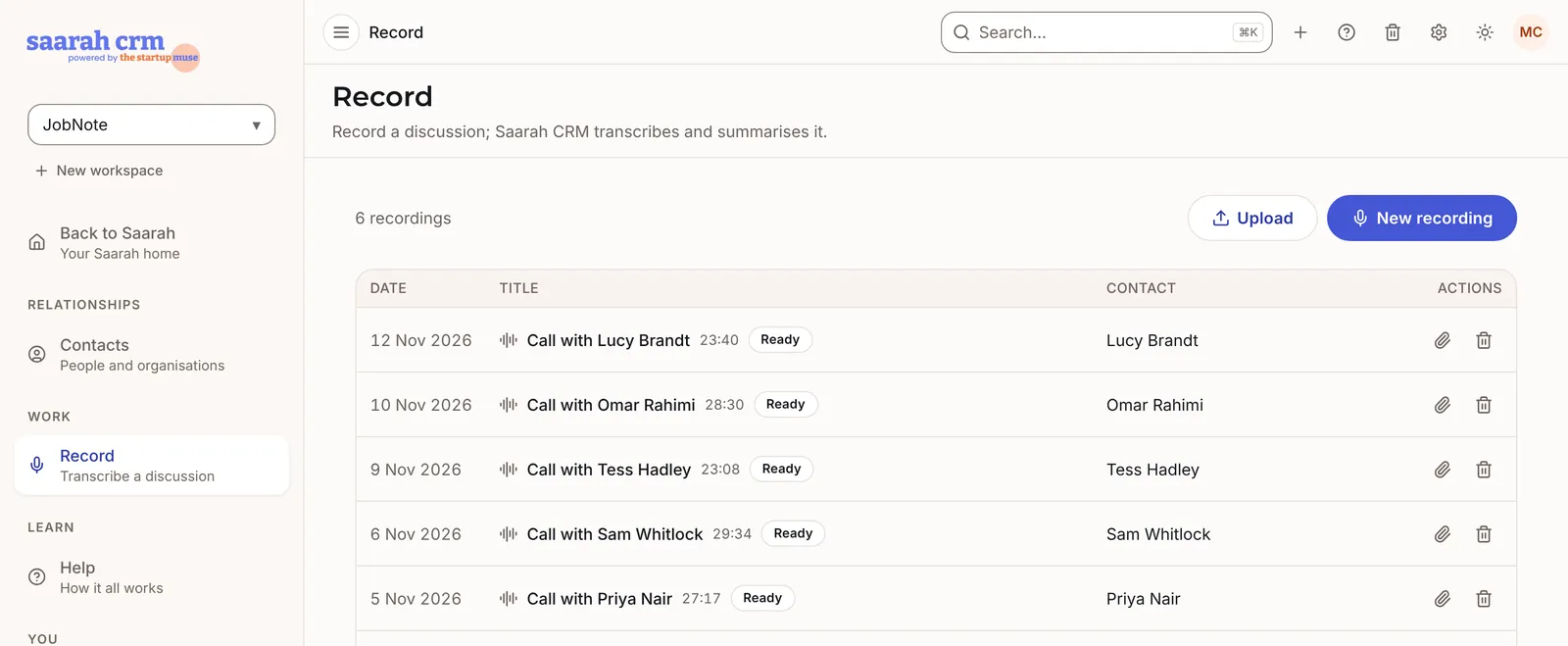
- Choose New recording, give it a title, and choose Start recording. Your browser asks for the microphone the first time.
- Pause and resume as you need, then Stop.
- Choose Save and transcribe. The transcript usually appears within a few minutes, with the speakers told apart. A summary follows, with an overview, key points, decisions, action items and next steps. You can close the page while all this happens.
Recording in the browser uses your microphone only and stops at an hour. For a Zoom call, record it in Zoom and choose Upload on the Record page instead. Attach links a recording to a contact, and its summary lands on their timeline.
Tell everyone in the conversation that you're recording before you start. And take care when you delete a recording, because recordings don't go to the Trash and can't be brought back.
For customer discovery calls, use Discover, where each call follows a conversation guide and feeds the Business Canvas. Record in the CRM is for your other meetings and calls.
“What has happened with…”
Where: a contact's page, above the timeline
A line titled What has happened with the contact's name offers a summary from Saarah. It's a few lines on what has been said and done and where things stand, drawn from the notes and messages you can see.
- Click Summarise. It reads the timeline and writes the summary.
- Click Refresh later for an up-to-date version.
Mail Drop Box
Where: Settings, your own Mail Drop Box address
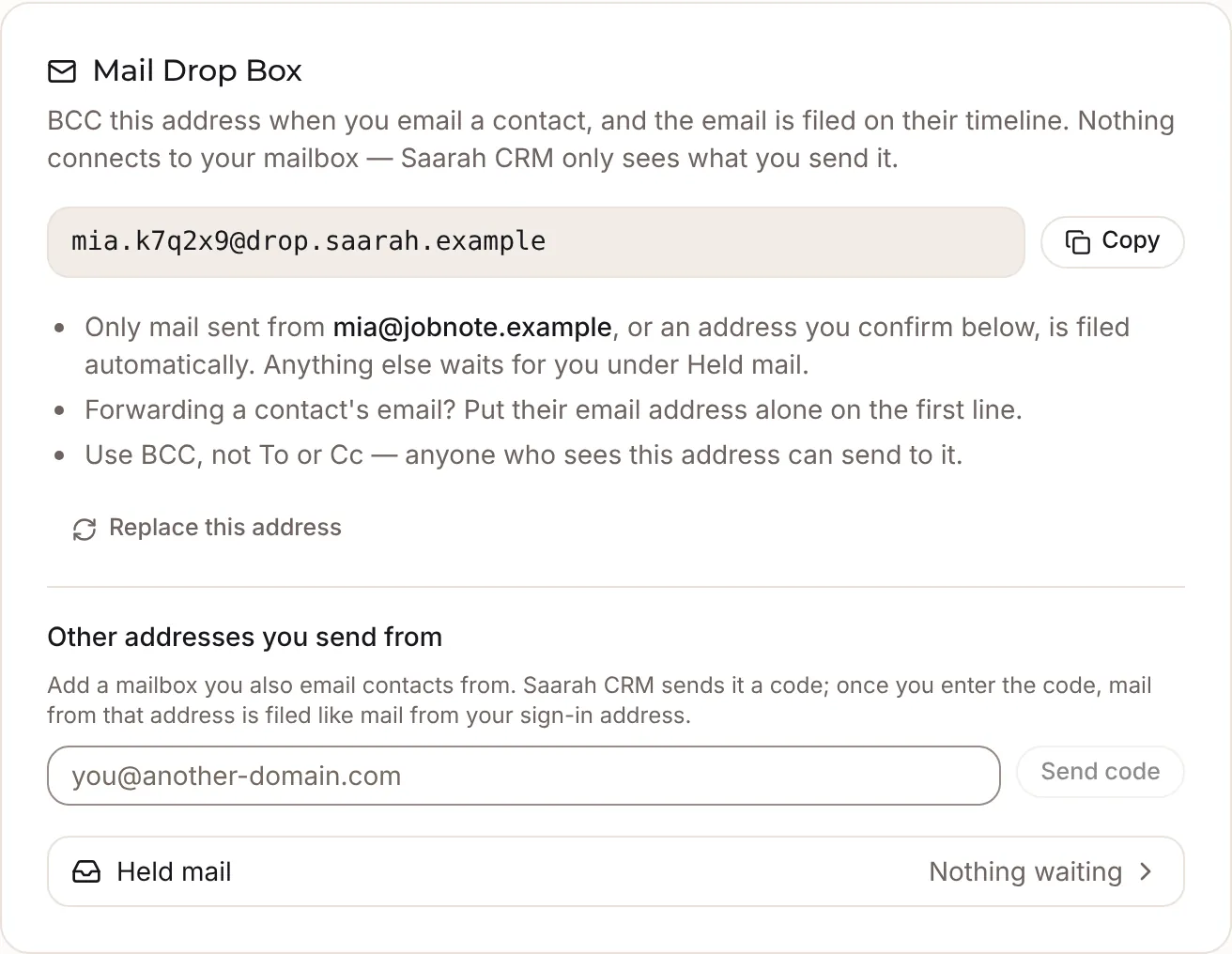
The Mail Drop Box is your own private address. BCC it on an email to a contact, or forward one to it, and the message appears on that contact's timeline. If the person isn't in the CRM yet, they're added and the message is filed on them.
Mail must come from the address you sign in with. Anything the CRM can't be sure about, such as a message from a shared mailbox, waits in Held mail, where one click adds the contact and files it.
The setup checklist
Where: the top of Contacts, for whoever runs the workspace
In a new workspace, the Contacts page opens with four first steps. They are to describe the business, add your first contacts, save your Mail Drop address and invite a colleague. Once the workspace has contacts it folds to one line, with a count such as 2 of 4 done and Continue.
Most steps tick themselves when they're done. Two of them work differently. The Mail Drop step makes your address with Create my address, and you tick it with I've saved it. Just me for now sets the invitation aside if you work alone. Hide the checklist hides it for you in this browser, and it disappears once every step is done.
Your data and account
How to take a copy of your work, get back something you deleted, and who can see what.
Copies of your work
What you put into Saarah is yours. Here's how to take a copy of each kind of thing.
| What | Where | What you get |
|---|---|---|
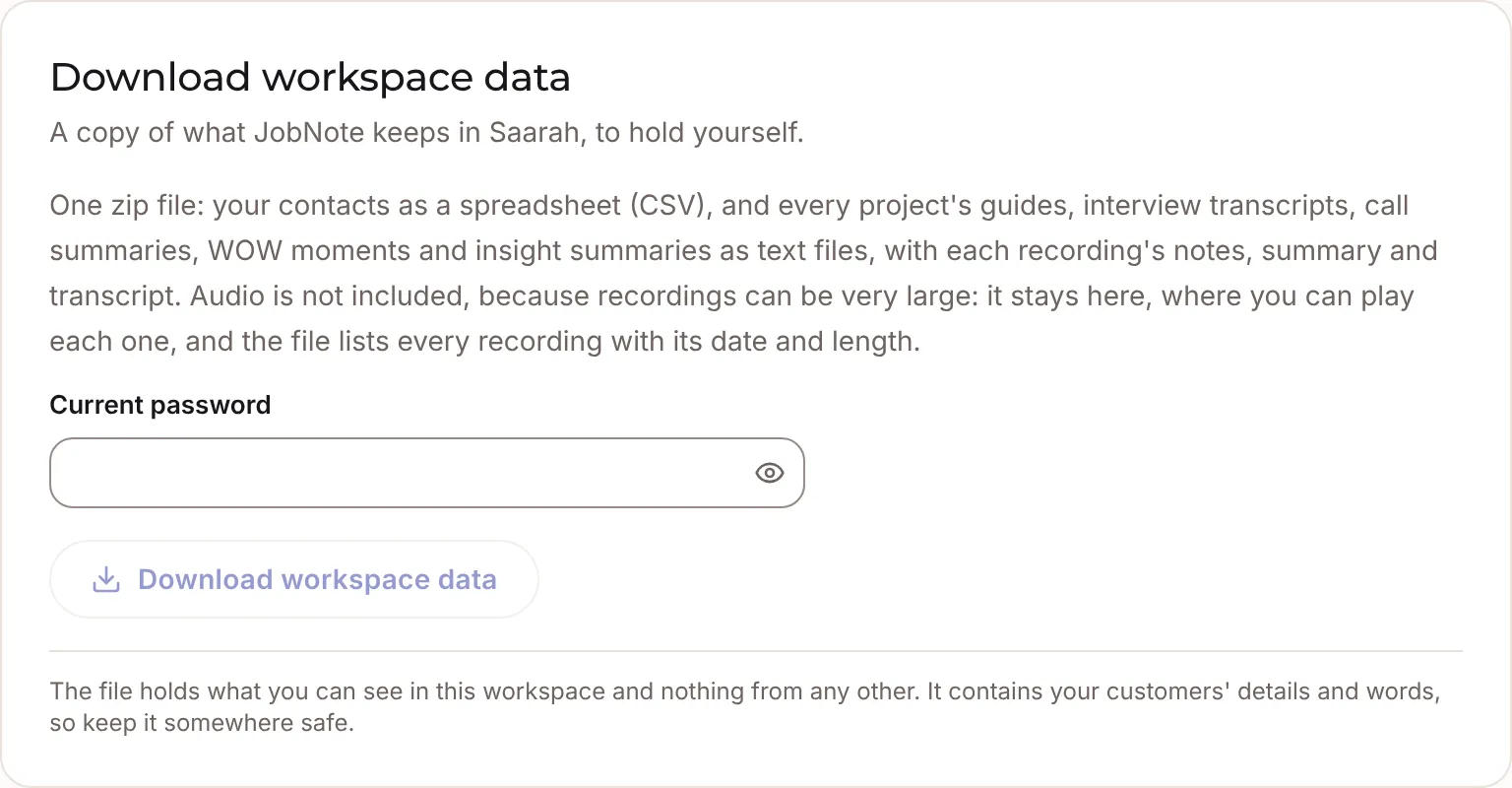
| The whole workspace | Discover, Settings, Download workspace data | One zip file: your contacts as a spreadsheet (CSV), and every project's guides, transcripts, call summaries, WOW moments and insight summaries as text files. Audio isn't included. It stays in Saarah, where you can play it. |
| Your contacts | CRM, Contacts, Export | The list as you have filtered it, as a spreadsheet (CSV). |
| Your canvas | Business Canvas, Your canvas, Print or save as PDF | The one-page canvas on a landscape page. Saved versions keep earlier states inside Saarah. |
| A conversation guide | Discover, a project's Plan tab, Download PDF | The guide, to print or read on a tablet during a call. |
| What Saarah holds about you | Settings in Discover or the CRM, Download my data | One file with your account, your sign-in history, and the notes, emails, tasks and uploads you added. |
The workspace download and the personal download each ask for your current password first. The workspace download and the contacts export also need the export permission, which whoever runs the workspace gives. These files hold your customers' details and words, so keep them somewhere safe.
The Trash
In Discover and the CRM, what you delete goes to the Trash first. That's the bin at the top right of every page, and things wait there for 30 days. Restore puts something back along with everything that went with it, so a person removed from a project comes back with their recording, transcript, summary and WOW moments. After 30 days it's deleted for good. A person removed from a Discover project stays in your CRM contacts throughout.
Delete your account is the last card in Settings. It can't be undone, so take your copies first.
Who sees what
A workspace is one business. Its projects, contacts and canvas are seen only by the people in it, and nothing is shared between workspaces. If you run more than one business, or work with several clients, give each its own workspace.
Inside a workspace, everyone sees everything unless it has been assigned to a team. Teams are the only privacy control there is. An owner sets them up in the CRM under Settings, Workspace, and invites people under Settings, People.
Saarah reads the whole workspace too. When she drafts a guide, writes a summary, checks a box or answers a question, she's working from that workspace's profile, projects and calls. She never draws on another workspace.
The people you interview don't hear from Saarah at all. Discover doesn't ring, email or book anyone. You invite people yourself, and you ask them before you record.
Your Mail Drop Box address belongs to you alone, but anyone who has it can file mail with it. Always put it in BCC, where the other person can't see it, and never in To or Cc.
Reference
A checklist for your first few weeks, a short glossary, and answers to the questions we hear most.
Checklist for your first weeks
- Create a workspace for your business, and fill in the business profile.
- Start a research project with a research issue that ends in a decision.
- Write three to five hypotheses about what customers do today.
- Generate the conversation guide, replace every [square bracket] note, and set your number of calls.
- Add the people you'll talk to, and invite them yourself.
- Record each call (tell them first), or upload the recording or transcript.
- Review each call summary and keep your WOW moments.
- Read the insight summary at 5 calls, and decide what happened to each hypothesis.
- Open the Business Canvas and fill the boxes in order, at least boxes 1 to 3.
- Check each box with Saarah, and save a version.
- Turn what's still an assumption into the hypotheses of your next project.
- In the CRM, set a follow-up date for everyone you promised to get back to.
- Create your Mail Drop Box address and BCC it on your emails to the people you interviewed.
- Download a copy of your workspace data and keep it somewhere safe.
Words used in this walk-through
- Workspace
- One business, with its own projects, customer list and canvas. Switch at the top of the menu.
- Business profile
- What the business does, its stage and its market. Saarah reads it whenever she writes for the workspace.
- Research project
- A research issue, hypotheses, the people you talk to and everything those calls produce.
- Research issue
- What you need to understand from customers so that you can decide something.
- Hypothesis
- Something you think might be true about your customers, which the calls test.
- Conversation guide
- The questions for every call in a project, with timings. Yours to follow; never sent to the people you talk to.
- Call
- Any conversation with a person: in person, by phone or on video.
- WOW moment
- Something that struck you in a call: your note, or a pinned line of the transcript.
- Insight summary
- Saarah's summary across calls, written after 5 calls and at your goal.
- Statement
- One line you write in a canvas box.
- Point
- One cited line of a Discover summary, used as evidence for or against a statement.
- Early adopters
- The customers who feel the problem most and will try something first.
- Lean Canvas
- Ash Maurya's one-page adaptation of the Business Model Canvas, which the Business Canvas follows.
- Contact
- A person or an organisation in Saarah CRM. The people in a Discover project come from the same list.
- Follow-up date
- The day to get back to a contact. Contacts whose day has arrived are counted under Follow-ups due.
- Saved list
- A named set of contacts in the CRM: either a filter that stays up to date, or a list you add people to by hand.
- Mail Drop Box
- Your own private address in the CRM. BCC it on an email to a contact and the email is filed on their timeline.
- Free period
- The 30 days from the day you signed up, when Saarah is free with no card.
Getting unstuck
A call I recorded on my phone hasn't appeared.
Open the project. It checks for new calls each time one of its pages opens.
Discover looks different on my phone.
On a phone, Discover shows a simpler layout for recording calls: Home, Recordings and Settings. Set up projects and read summaries on a computer. Settings on the phone can open the full site if you need it.
My uploaded transcript can't be read.
Upload it again, or another copy, from the person's page. A scanned PDF needs OCR first so its words can be read.
I closed New project before I finished.
Open it again. What you typed is kept in this browser until you create the project or choose Start again.
The canvas says to choose a workspace.
Choose yours under Workspace at the top of the menu, or make one with New workspace. Until you do, Saarah has no research to read for the canvas.
My canvas shows no evidence.
The Your canvas card names the Discover projects it reads and how many summaries each has. A project with no summaries yet adds nothing. Check you're in the same workspace in both apps.
I removed someone from a project by mistake.
Open the Trash, the bin beside Help at the top of every Discover page. Restore puts them back with their recording, transcript, summary and WOW moments. Things stay there for 30 days.
My phone says the code has expired.
A code on the screen works once, for five minutes. On your computer, choose New code under the QR code and scan again, or choose Sign in on the phone.
I want a copy of my work.
In Discover, open Settings and find Download workspace data. Type your current password and choose Download workspace data. You get one zip file: your contacts as a spreadsheet (CSV), and every project's guides, transcripts, call summaries, WOW moments and insight summaries as text files. Audio isn't included. The file holds your customers' words, so keep it somewhere safe. If the button isn't there, ask whoever runs the workspace for the export permission.
I have a free-access code.
Go to Settings at app.saarah.ai and type it under Have a code? on the Your subscription card. The card then shows the date Saarah is free for you until.
Something else.
Write to us at support@saarah.ai and tell us what you were doing and what you saw. We'll reply by email. You can also send Feedback, or Book an appointment, from the menu at app.saarah.ai.